
Ventoy (Windows/Linux)
If you are using Windows or Linux and Ventoy, follow these steps:
- Download a Nitrux ISO file, and install Ventoy and its GUI in the host operating system.
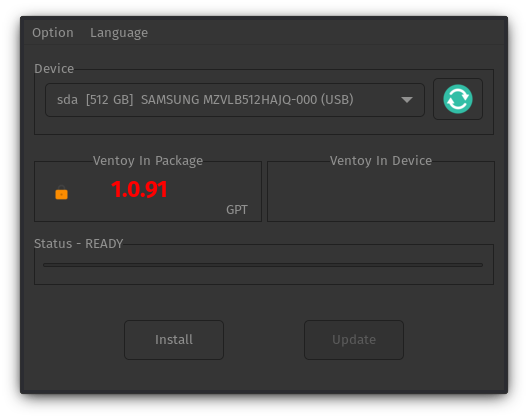
- Using the Ventoy GUI, install Ventoy on the USB drive; this will delete all the data on the selected drive.
- Copy and paste, or cut and move, the Nitrux ISO file from the download location to the Ventoy directory on the USB drive. The directory will appear in the file manager’s sidebar.
Troubleshooting
Below is a list of recommendations when using Ventoy.
- Always ensure you use the latest available version of Ventoy.
- Ensure that Secure Boot is active in Option→Secure Boot Support.
- Do not confuse this directory with VENTOYEFI.
- When using Ventoy on Linux, run the command
syncto flush the USB write cache. In devices with little or no cache (like most USB thumb drives), the user must flush the cache before data is properly stored, and the kernel writes the data to the NAND flash. Ventoy does not implement any file verification method before or after the user copies or moves the ISO to the USB device. Always verify the ISO file’s checksum after copying or moving it to the Ventoy directory. - When booting our ISO file with Ventoy, if the computer has less than 4GB of RAM, select the GRUB 2 boot option in the menu; otherwise, you will see an “out of memory” error.
- For more information, see this issue at the Ventoy bug tracker.
- Additionally, check the Ventoy documentation about using the GRUB 2 boot mode.