
Dual-booting Nitrux with Windows or other Linux distributions
To install Nitrux alongside Windows, do the following steps:
- Disable Secure Boot using your device’s firmware.
- After disabling Secure Boot, do either of the following:
- Boot the Nitrux ISO, launch the installer, select “Install alongside,” and click on an existing Windows NTFS partition with sufficient space. Adjust the slider to set the allocation for Nitrux.
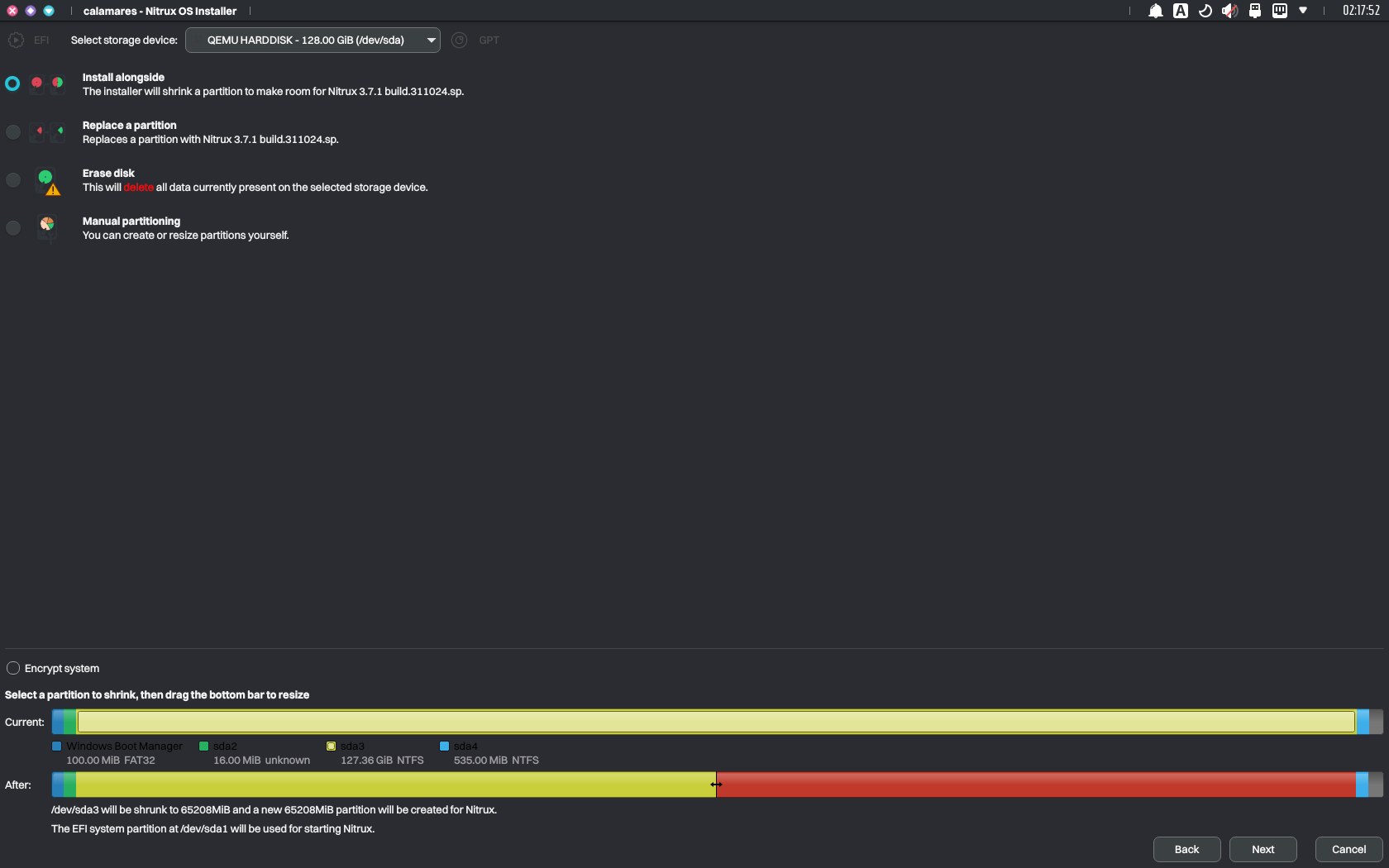
Allocating storage space to install Nitrux within Calamares. Image for reference.
-
- Or, boot into Windows and use Disk Management to shrink a partition in your storage device to create unallocated space. Then, launch the installer, select “Replace partition,” and click the unallocated space.
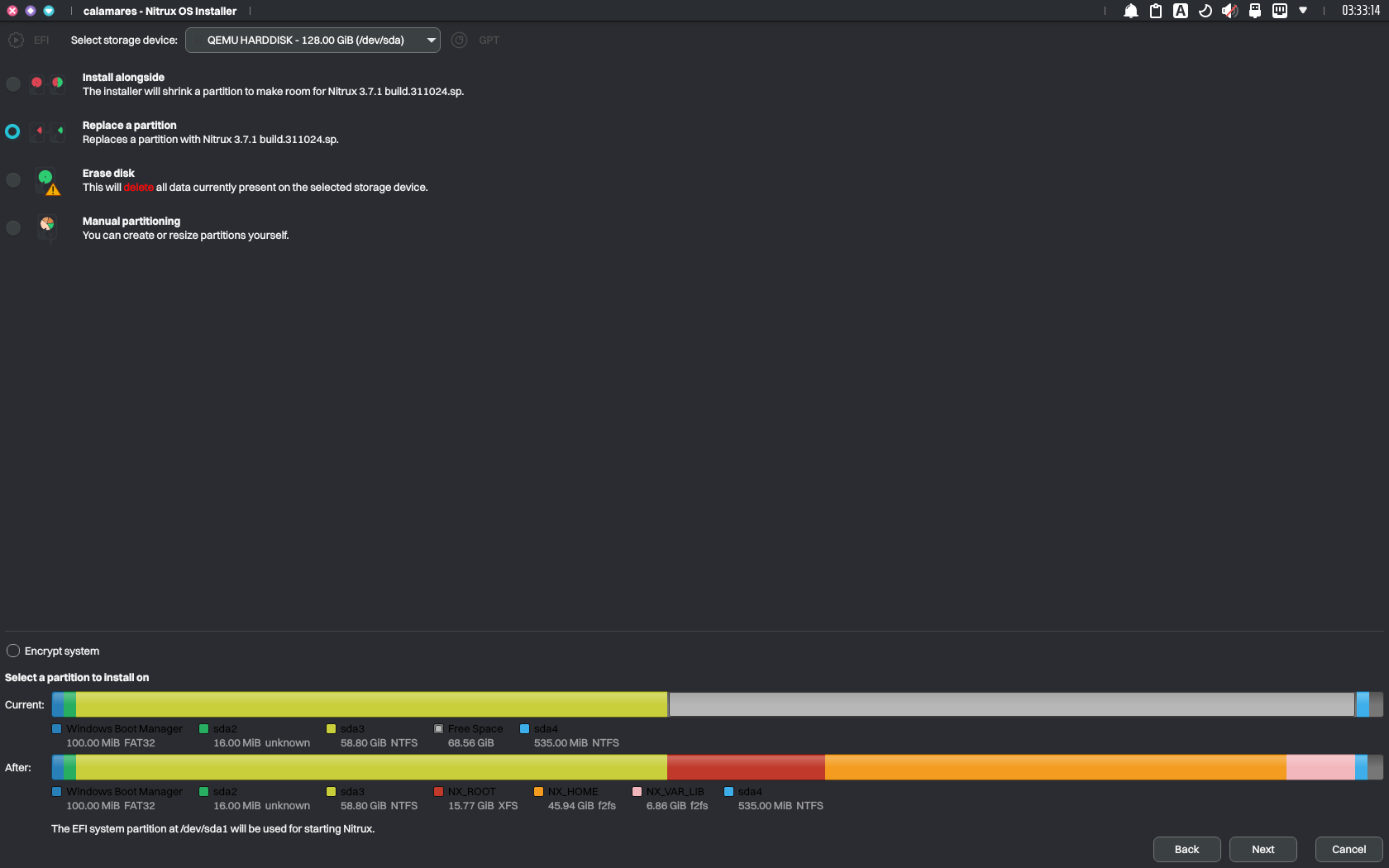
Using unallocated space to install Nitrux. Image for reference.
- Alternatively, select “Manual partitioning” and follow our partition layout table.
Regardless of the selection, once the installation is complete, GRUB will display entries to boot into Nitrux or Windows (Windows Boot Manager) upon reboot.
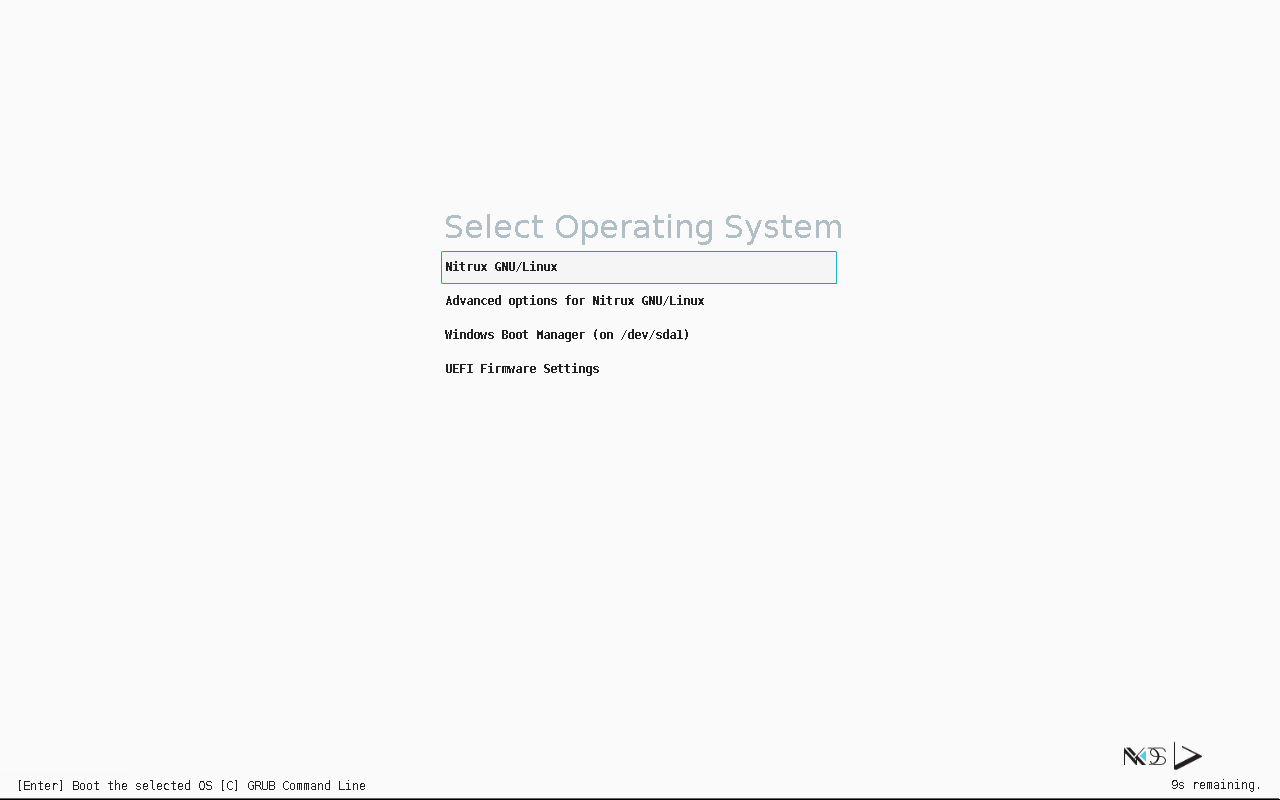
Upon rebooting, GRUB will display an entry for the Windows Boot Manager. Image for reference.
Installing Nitrux alongside other Linux distributions follows the same process described above.
- Disable Secure Boot using your device’s firmware.
- After disabling Secure Boot, do either of the following:
- Boot the Nitrux ISO, launch the installer, select “Install alongside,” and click on an existing partition with sufficient space. Adjust the slider to set the allocation for Nitrux.
- Alternatively, select “Manual partitioning” and follow our partition layout table.
Regardless of the selection, once installation is complete, GRUB will display entries to boot into Nitrux or another Linux distribution at reboot.