
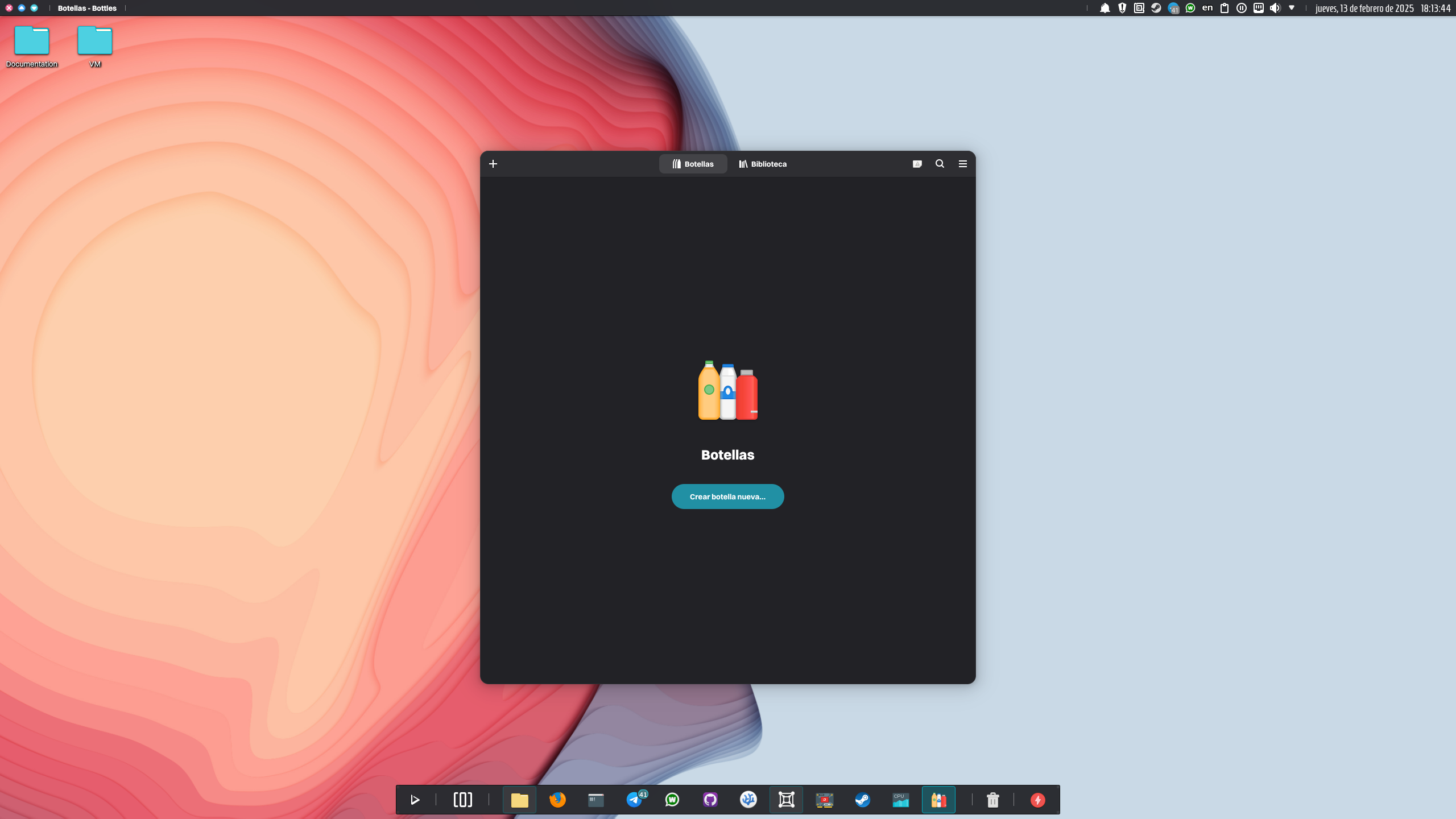
One of the most popular alternatives to Windows is Linux. But what do Windows users do about running Windows apps on a Linux distribution? For most Linux users, that means installing Wine using the distribution’s package manager, which, among other things, adds 32-bit libraries to the root directory. However, Nitrux is not a package manager-based distribution; it is exclusively a 64-bit distribution, and we do not support 32-bit architectures.
To no one’s surprise, users can still do that using a container in Distrobox; check our Distrobox tutorial for more information. However, we believe running Windows software is easier with software like Bottles, which we mentioned in our tutorial “Gaming in Nitrux pt.“ 1: Get Started instead of going through the usual and less convenient route of installing and configuring vanilla Wine “the traditional way.”
Bottles is an application that allows users to run Windows software using Wine. It uses separate environments (or Bottles, hence the name), allowing users to have different settings for each program. Additionally, Bottles handles many of the components necessary to run software, such as .NET installers and VC redistributable packages, via its integrated dependency manager. Additionally, Bottles includes a feature called Installers, which lets users easily install multiple store launchers or select applications.
Difficulty: ★☆☆☆☆
📜 Table of Contents
Install Bottles in Nitrux
To install Bottles in Nitrux, open the applications launcher, select Install Bottles, or search for “install bottles” in the search field.
- 🔰 Information: After clicking the launcher in the application menu, Bottles will be installed in the background using Flatpak. Installation time will vary depending on the speed of the Internet connection.
As we mentioned, the install script will install Bottles in the background. During this time, our installation script will display notifications and start Bottles after the installation is complete.
Install and Run Windows Software in Bottles
For this tutorial, we’ll use executables from the PortableApps.com Platform™. As the name suggests, PortableApps are portable Windows applications, similar in concept to AppImages in Linux, and they are a great fit for Nitrux.
- 🔰 Information: The PortableApps.com Platform is 100% free to use, share, and fully open source. The source code is licensed under the GPL v2 and available on SourceForge.
- 🔰 Information: Check this link for available applications in their Portable App Directory.
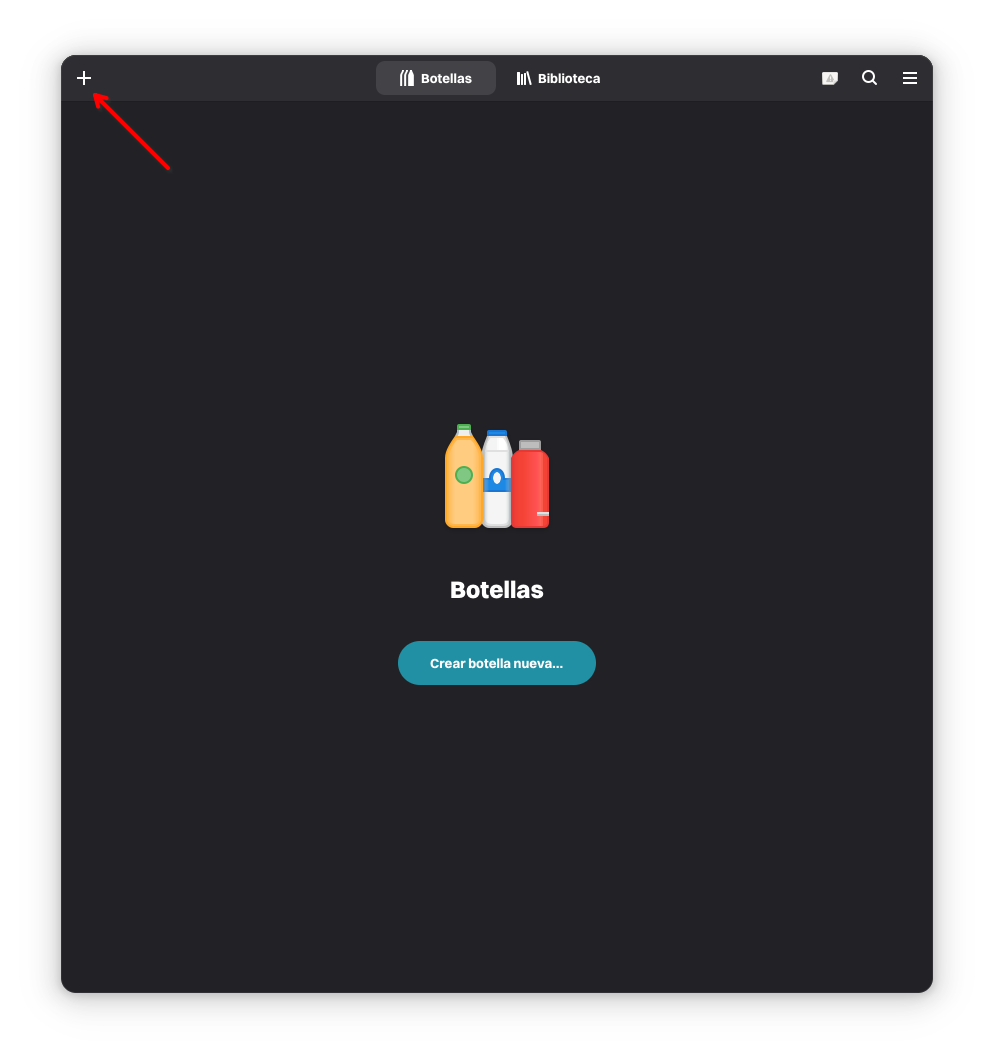
We’ll use OperaGX, “a special version of the Opera browser built specifically to complement gaming,” as an example of a Windows application without a native Linux client. To create a new bottle, click the + button in the main window.
- ⚠️ Important: While Bottles allows users to customize the Wine prefix and use other builds of Wine to provide the best working environment for a given application, it’s always best to check if the application works with vanilla Wine to begin with; the Wine community provides a database of applications where users can search and rate Windows software using various rating levels to indicate their working status.
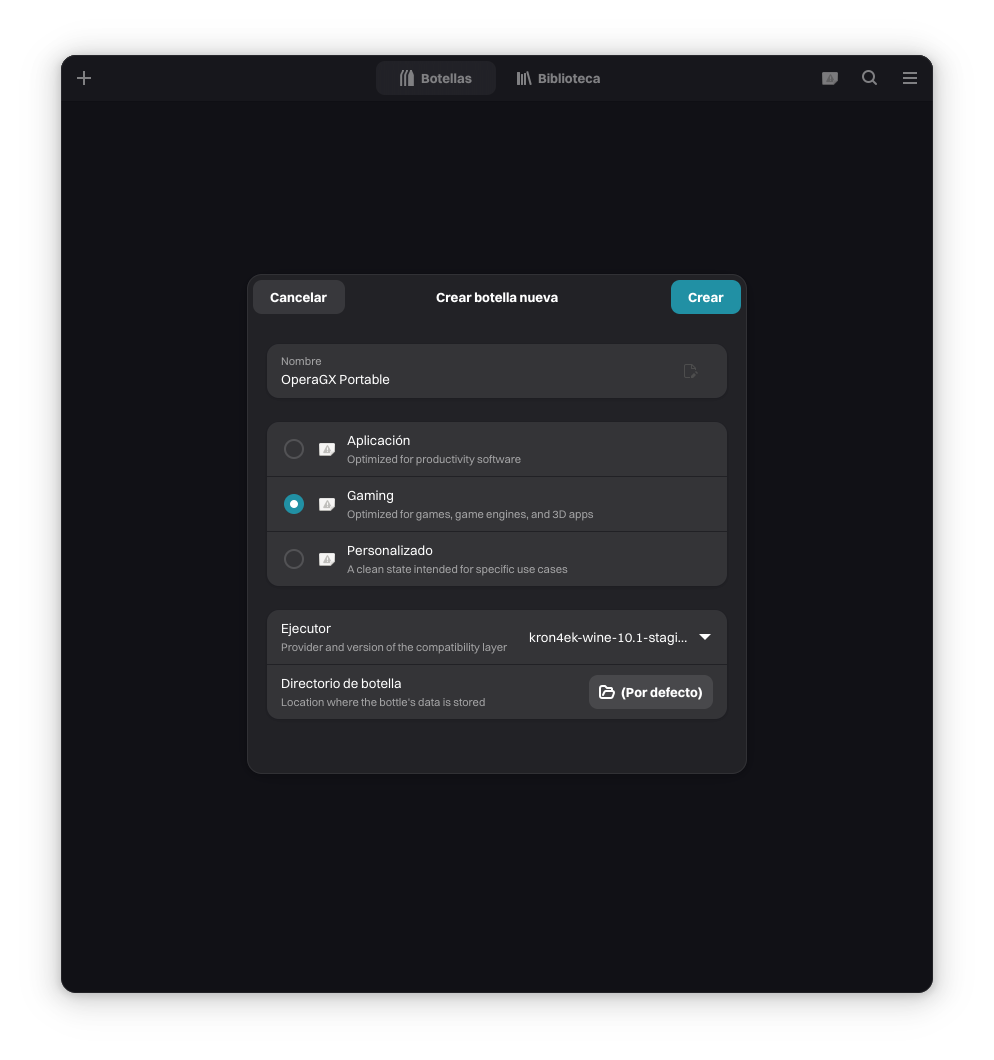
Then, add a name for the bottle and select the best profile (Application, Gaming, or Custom) for the application you’ll install in the bottle environment. Generally, the default Application profile will work for most software. Next, select the Runner, the built-in Wine build used to run the application.
- 🔰 Information: Bottles does not use vanilla Wine (sys-wine) as the default runner; instead, Bottles uses its custom build called “soda.”
- 🔰 Information: For more runners, check in Bottles in Preferences→Runners. Check the Bottles documentation for more information about Runners.
For OperaGX, we’ll use a runner called Kron4ek to make the program work. Finally, click Create and wait while Bottles configures the environment.
- 🔰 Information: Not all applications will work with a single runner; some applications will work fine with vanilla Wine, others with soda, others will require additional runners, and so on.
- 🔰 Information: Users can install multiple applications in a single environment, but it’s better to take advantage of the isolated environments that Bottles provides.
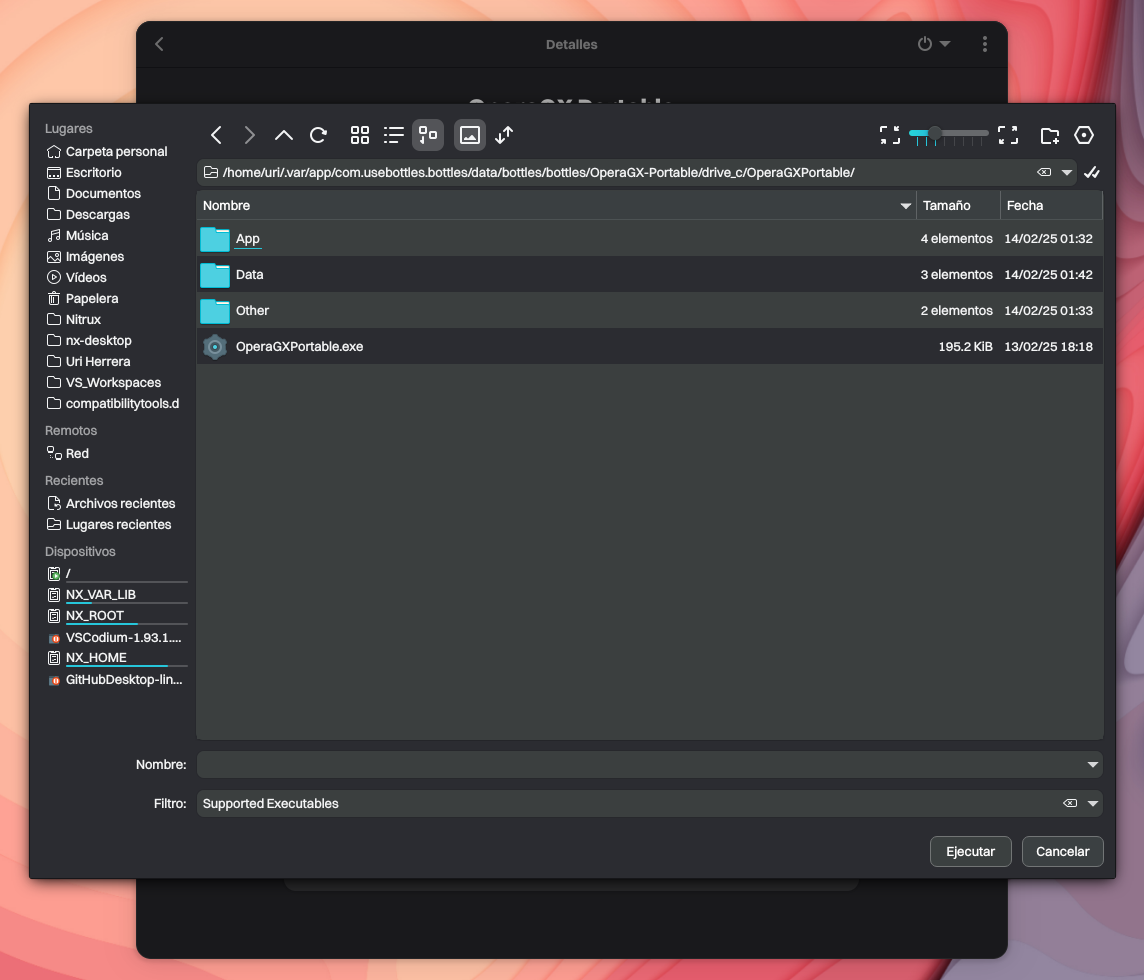
After Bottles completes the environment setup, we can left-click the new bottle, click “Run the executable …” and browse for the installer executable. Once the installer finishes, we can click “Run the executable …” and browse for the OperaGX executable.
And that’s it: Our exclusive Windows application, OperaGX, runs on Nitrux. Application support will vary depending on the application; there isn’t a one-size-fits-all solution. To run OperaGX, we only needed to use a different runner; other applications might require more tinkering.
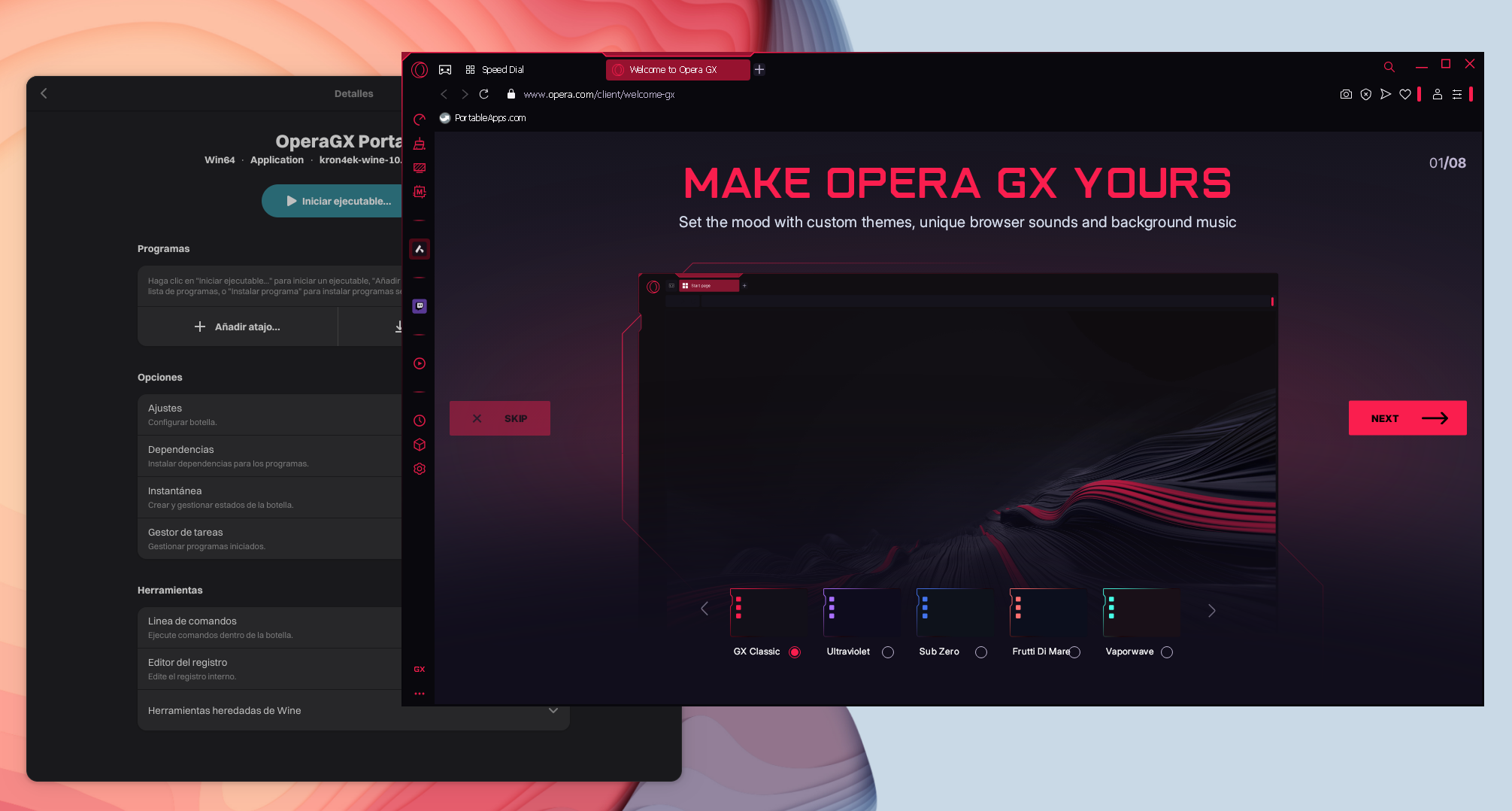
For in-depth information about Bottles, read their documentation.
Disclaimer: We do not develop Bottles or Wine. To report problems with either software, please create an issue in its respective bug tracker (Bottles Issues on GitHub or the Wine Bug Tracker).
Troubleshooting
If you encounter issues during installation, use the following strategies to diagnose and resolve them.
PortableApps fails to install due to Permission Errors
PortableApps installers should extract their contents to the same directory as the installer executable. If we download the installer to our home directory, it will cause an error because Bottles needs write access to it, since it’s a Flatpak.
The simplest solution is to select the C:\ virtual drive in the installer window instead of the Z:\ virtual drive, which maps to our home directory.
Alternatively, move the executable to a directory that Bottles already has access to, such as the bottle’s C:\ virtual drive.
- 🔰 Information: Replace the bottle’s name accordingly.
$HOME/.var/app/com.usebottles.bottles/data/bottles/bottles/<BOTTLE_NAME>/drive_c
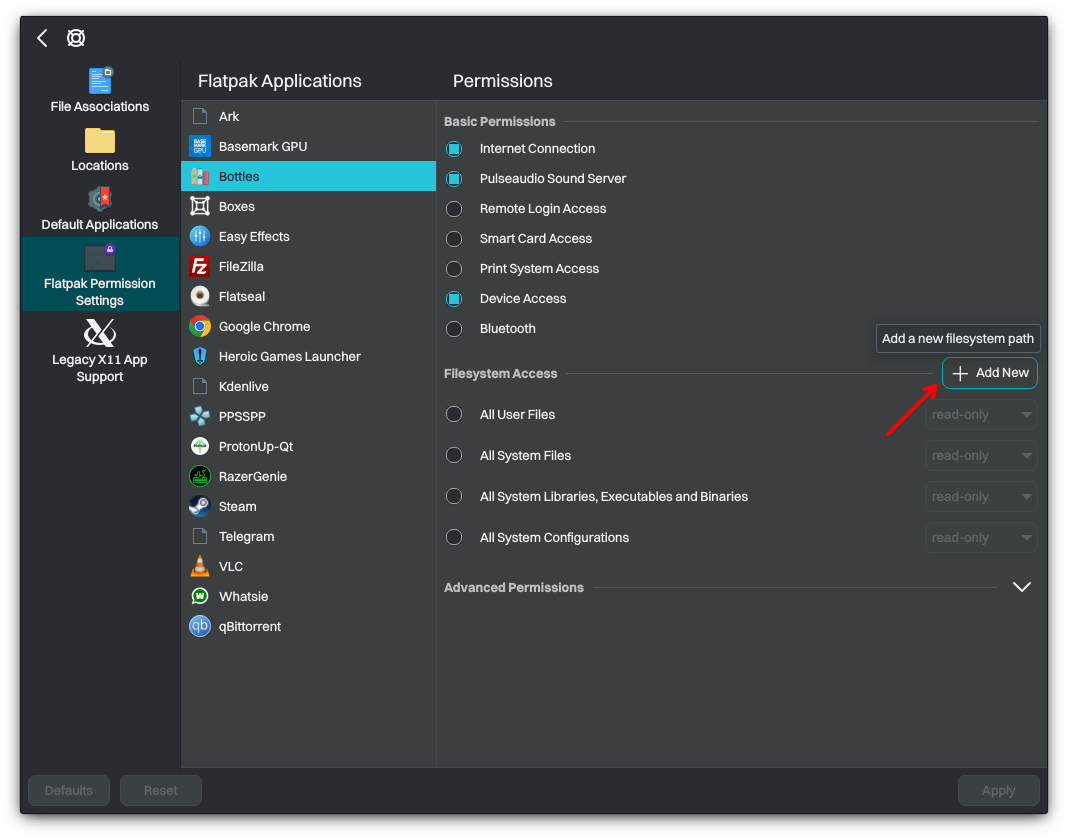
Another alternative solution is to grant Bottles read and write permissions for the directory where the executable is located, for example, the Downloads directory in our home. To do this, go to System Settings→Applications→Flatpak Permission Settings.
Then, click + Add New.
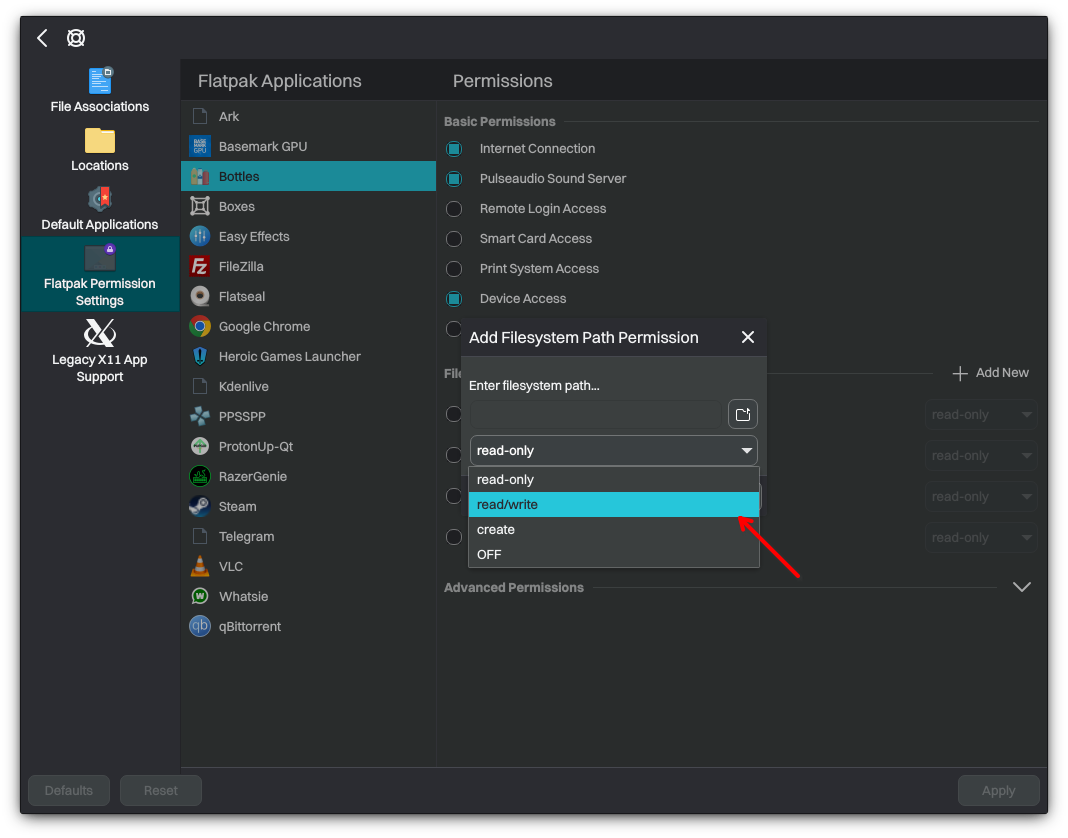
In the dialog, enter the filesystem path to the executable and ensure Read/Write is selected; then click OK.
That’s it; this concludes today’s tutorial.