

When new users start using Nitrux, many think they can’t install many tools in the distribution, such as a hypervisor (specifically, a type 2 hypervisor), because they’re used to using a package manager. In today’s tutorial, we’ll install various hypervisors in Nitrux.
Difficulty: ★☆☆☆☆
📜 Table of Contents
VirtualBox (Oracle Installer)
Let’s start with VirtualBox. VirtualBox is a type 2 hypervisor developed by Oracle for running a virtual operating system on your computer, and is arguably one of the most popular hypervisors on Linux. Most users are familiar with the installation process on Debian-based distributions, such as Debian, Ubuntu, and Mint, either by installing a Debian package from the distribution’s repositories or by adding a repository.
However, you can also install VirtualBox without a package manager using Oracle’s installer. The VirtualBox installer (a shell script) will install the application in the root directory, specifically in /opt. Since the user can’t select where to install VirtualBox (whether using this installer or a Debian package), we’ll need to enter the overlay and run the installation process.
The VirtualBox installer is an official Oracle installation script. The installer targets all Linux distributions, not specifically Nitrux.
To install VirtualBox in Nitrux, do the following steps:
- To get the installer link, visit the official VirtualBox website and click the large download button.
- Now, click on Linux distributions under “VirtualBox Platform Packages”.
- Then right-click All distributions under VirtualBox X.Y.Z for Linux, and select “Save as” to download the installer.
- ⚠️ Important: According to the VirtualBox 7.1.4 release notes, Linux 6.12 changed the behavior of the KVM modules. This change in the kernel means that to use KVM acceleration, the user must add the following
kvm.enable_virt_at_load=0as either a parameter in the bootloader or a configuration file.
- ⚠️ Important: According to the VirtualBox 7.1.4 release notes, Linux 6.12 changed the behavior of the KVM modules. This change in the kernel means that to use KVM acceleration, the user must add the following
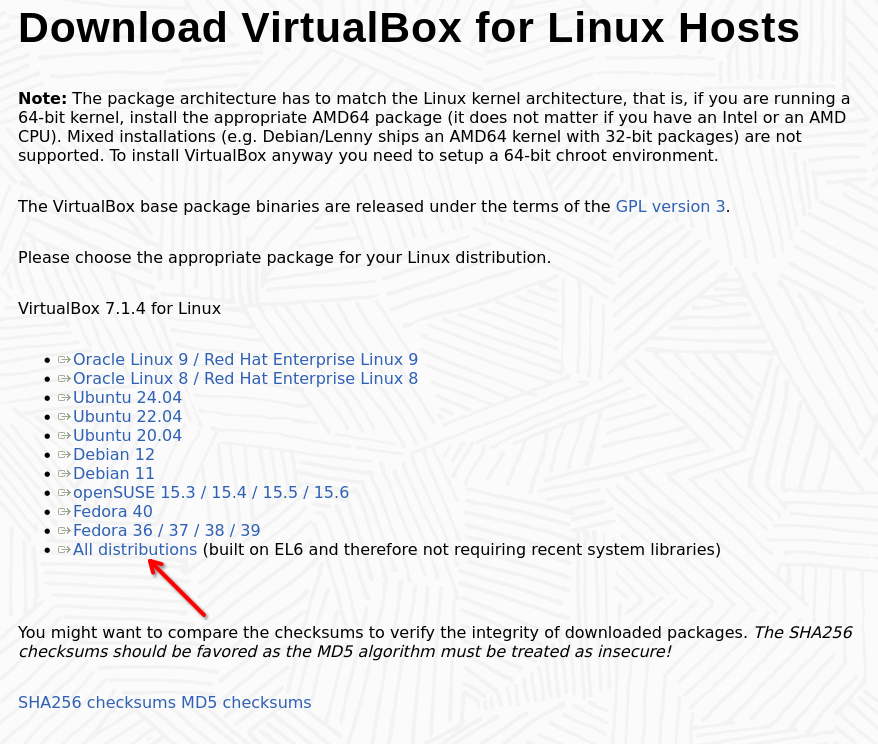
Download VirtualBox for Linux Hosts. Image for reference.
VMware Workstation Player/Pro (VMware installer)
Another well-known hypervisor is VMware’s Workstation product family. VMware Workstation is a type 2 hypervisor designed for Windows and Linux systems. It allows you to create and manage virtual machines in either Windows or Linux environments.
-
- 🔰 Information: VMware ownership changes have changed the hypervisor’s download process.
To install VMware Workstation Pro in Nitrux, do the following steps:
- Register for a Broadcom account or log in.
- Use this link to download the hypervisor.
- Select VMware Workstation Pro 17.0 for Personal Use (Linux) and click the download button.
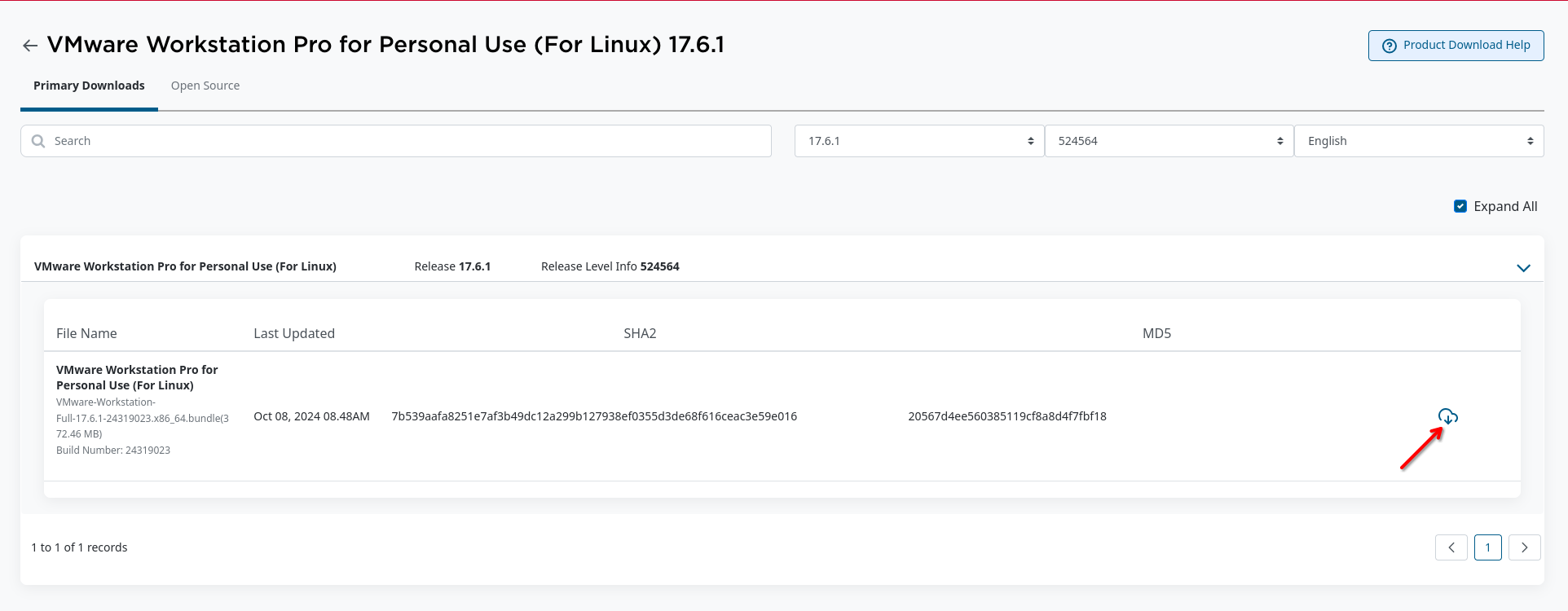
VMware Workstation Pro for Personal Use (For Linux) 17.6.1. Image for reference.
GNOME Boxes (Flatpak)
GNOME Boxes is free, open-source software that’s easy to use and makes it simple to create and manage virtual machines by abstracting away many options. GNOME Boxes, on the other hand, is targeted towards a typical desktop end-user who wants either a very safe and easy way to try out new operating systems or new (potentially unstable) versions of their favorite operating system(s), or needs to connect to a remote machine (home-office connection being a typical use case). For this reason, GNOME Boxes does not offer many of the advanced options that virt-manager provides for tweaking virtual machines. Instead, GNOME Boxes focuses on getting things working out of the box with minimal user input.
GNOME Boxes is available as a Flatpak from Flathub.
To install GNOME Boxes in Nitrux, do the following.
- 🔰 Information: Download Bauh and search for GNOME Boxes on Flathub.
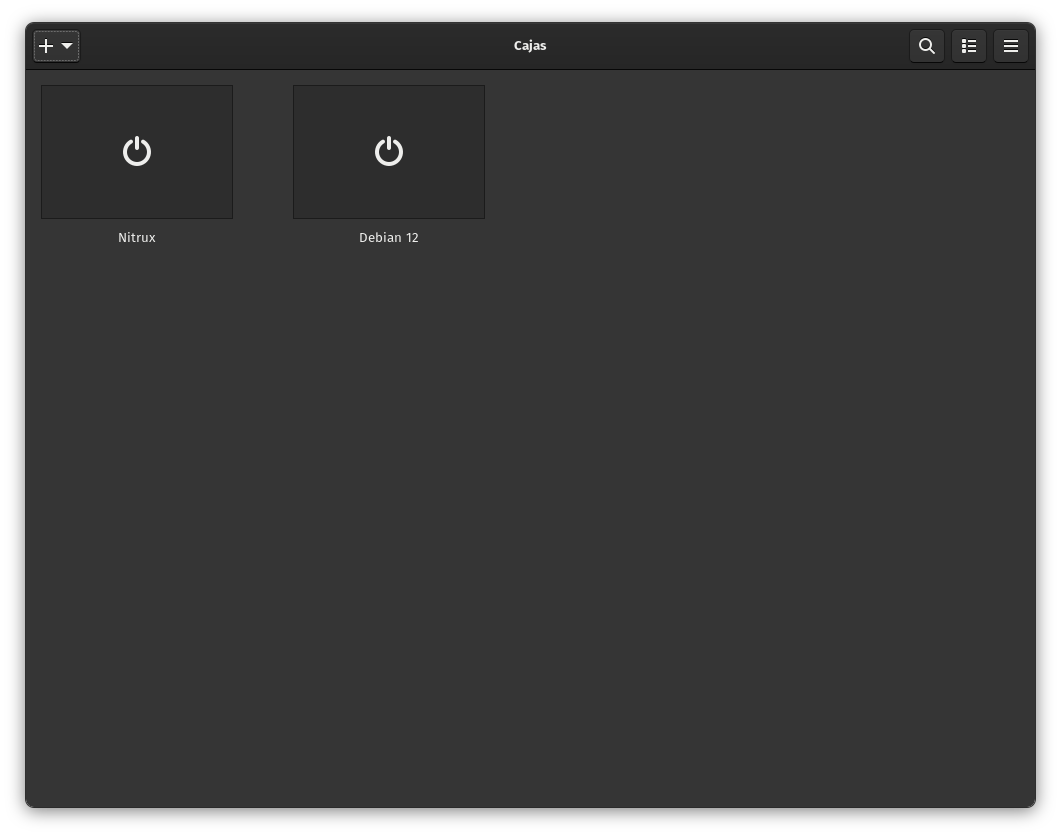
GNOME Boxes window. Image for reference.
AQEMU (Distrobox)
AQEMU is a GUI for virtual machines that uses QEMU as its backend. It provides support for the KVM accelerator on Linux. The application has a user-friendly interface and lets users configure many options. Since QEMU isn’t available as an AppImage or Flatpak, we can install it with Distrobox.
Let’s assume we use a container similar to the one in the tutorial to run Distrobox. To install AQEMU in Nitrux, do the following steps:
distrobox enter -n debian-stable-distrobox -- sudo apt -y install aqemu qemu-system-x86
We can export the application using Distrobox, so it appears in the applications menu. To do this, run the following command.
distrobox-export -a aqemu
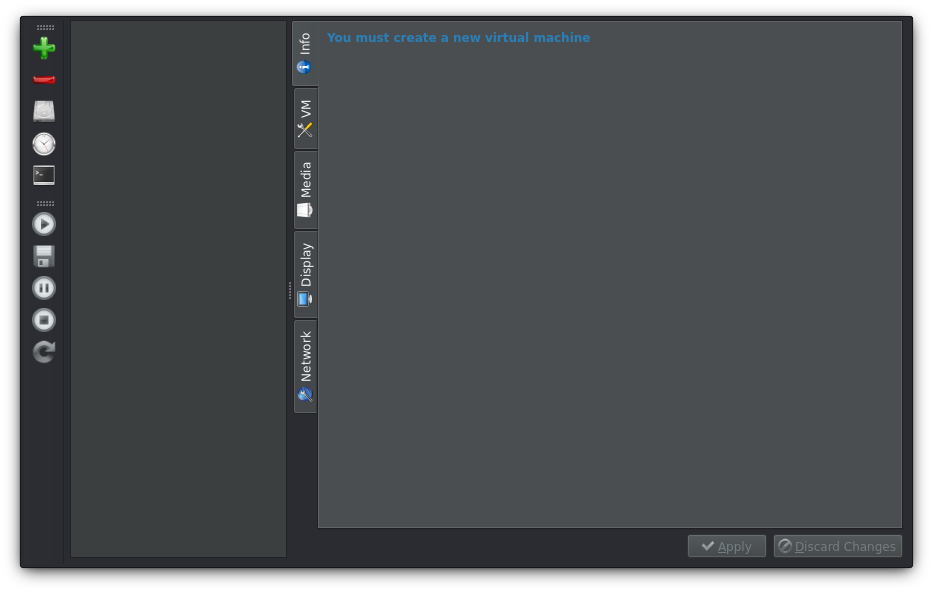
AQEMU in Distrobox. Image for reference.
Troubleshooting
GNOME Boxes Fails to Launch VM
The newer libvirt (11.7.0) in the GNOME Boxes 50.0 Flatpak build appears to try to set RLIMIT_CORE to “unlimited”. Inside the Flatpak/sandboxed user context, that raise is not permitted (hard limit/capability boundary), so libvirt aborts VM launch. Apply the following workaround:
mkdir -p ~/.var/app/org.gnome.Boxes/config/libvirt
cat > ~/.var/app/org.gnome.Boxes/config/libvirt/qemu.conf <<'EOF'
max_core = 0
EOF
That’s it; this concludes today’s tutorial.