
While we don’t necessarily label Nitrux a “gaming-centric” or “gaming-focused” distribution, it can still be. Continuing from the last tutorial, where we covered how to get games, we’ll look at additional tools to enhance the gaming experience, including hardware information, real-time statistics, overclocking utilities, and goodies we’ve added to our distribution.
Difficulty: ★☆☆☆☆
📜 Table of Contents
Hardware Information
To quickly visualize hardware information in Nitrux, use Workspace Settings.
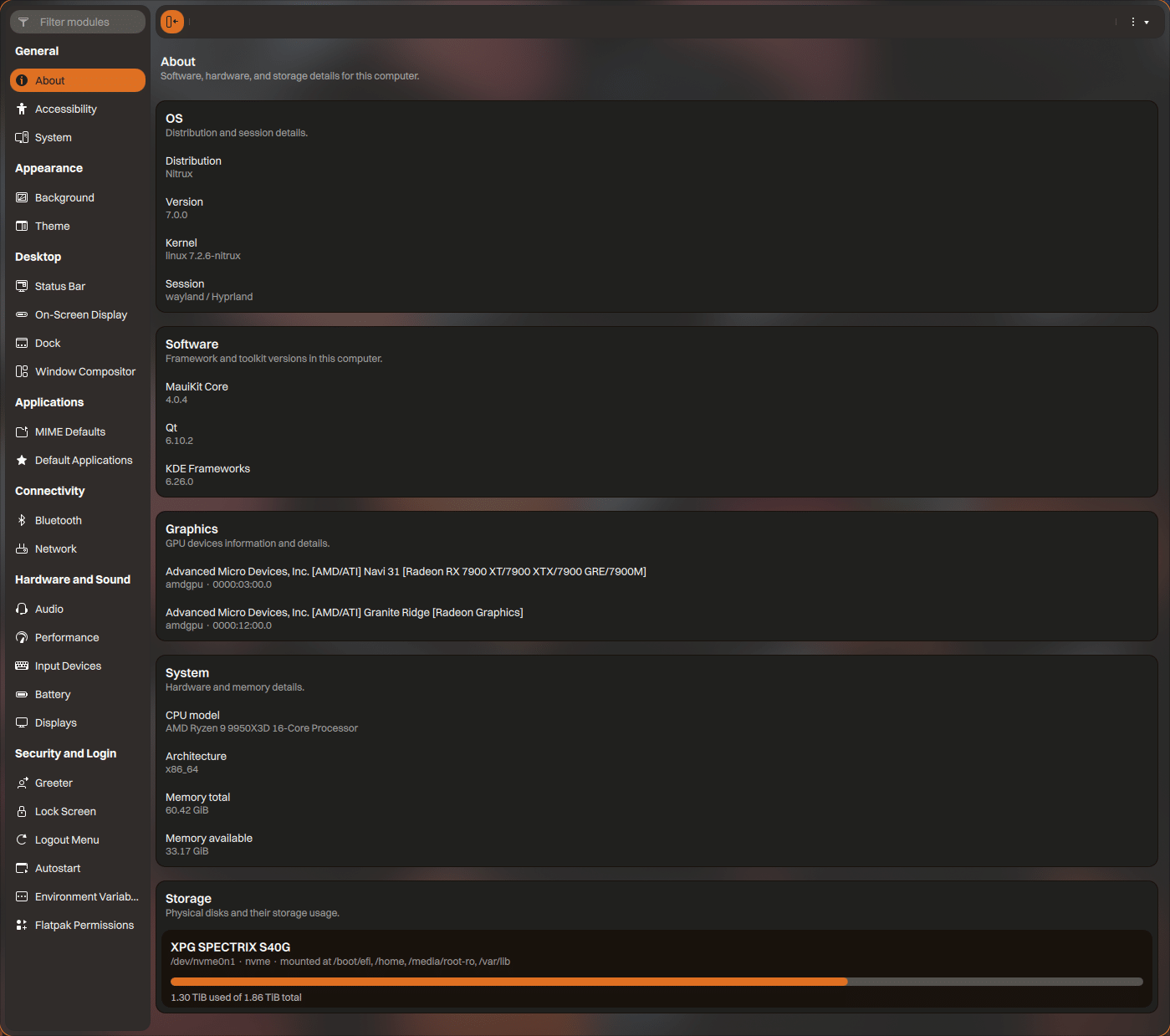
Workspace Settings.
Performance Optimization
GameMode lets games request optimizations for the host OS and the game process. GameMode was designed primarily as a stopgap solution for problems with Intel and AMD CPU powersave or on-demand governors, but now supports a range of optimization features and configurations. Since Nitrux 2.9.0, we have included GameMode by default.
GameMode includes support for optimizations, including:
- CPU governor
- I/O priority
- Process niceness
- Kernel scheduler (SCHED_ISO)
- Screensaver inhibiting
- GPU performance mode (NVIDIA and AMD), GPU overclocking (NVIDIA)
- CPU core pinning or parking
- Custom scripts
Disclaimer: Nitrux does not develop GameMode. Please create an issue in their respective bug tracker to report problems with this software.
Performance Statistics
MangoHud is a “Vulkan and OpenGL overlay for monitoring FPS, temperatures, CPU/GPU load, and more.”
- 🔰 Information: Check MangoHud documentation for supported environment variables.
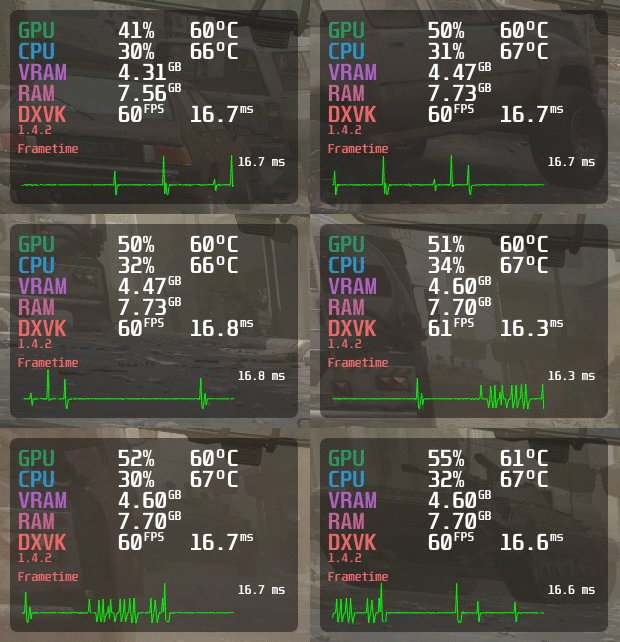
MangoHUD.
Do the following when using MangoHud with software such as Steam, Bottles, or HGL.
Using MangoHud in Steam (Flatpak)
- Search for the keyword “runtime” in Steam and download all of them.
- For each game, right-click the game title, click “Properties,” go to “General,” scroll down to “Launch Options,” and add the following options to enable MangoHud and GameMode; these parameters are all on a single line.
- Basic MangoHud parameters.
MANGOHUD=1 MANGOHUD_CONFIG=gamemode,preset=3 gamemoderun %command%
-
- Basic MangoHud parameters for AMD GPUs: change the PCI bus address accordingly.
MANGOHUD=1 MANGOHUD_CONFIG=gamemode,pci_dev='dev_address',preset=3 gamemoderun %command%
Using MangoHud in Heroic Games Launcher and Bottles (Flatpak)
- Enable MangoHud:
- To use MangoHud, enable it on a per-game or per-bottle basis using the application settings.
- Alternatively, add the following environment variables in their respective settings menus.
- Variable name:
MANGOHUD - Value:
1 - Variable name:
MANGOHUD_CONFIG - Value:
gamemode,preset=3- When using AMD GPUs, remove the single quotes in the PCI bus address:
gamemode,pci_dev=dev_address,preset=3
- When using AMD GPUs, remove the single quotes in the PCI bus address:
- Variable name:
- Alternatively, add the following environment variables in their respective settings menus.
- To use MangoHud, enable it on a per-game or per-bottle basis using the application settings.
- Enable GameMode:
- Check “Use GameMode” in the settings of individual games or the application’s global settings.
- Check the “Feral GameMode” toggle in the settings for an individual bottle.
The following is important information regarding MangoHud:
- MangoHud will not display statistics for AMD GPUs unless the configuration includes the PCI bus. Use the command
lspci | grep VGAand replace the PCI bus accordingly; this is not a Nitrux bug. - MangoHud will not display voltage statistics or fan percentages on NVIDIA Optimus laptops; this is not a Nitrux bug.
Disclaimer: We do not develop MangoHud. To report problems with this software, please create an issue in their respective bug tracker.
Overclocking Utilities
NVIDIA_OC is a simple Rust CLI tool for overclocking NVIDIA GPUs on Linux, supporting both X11 and Wayland and filling a gap in existing overclocking tools that only support X11.
To use this utility, see the example in the image below.
- 🔰 Information: The utility is exclusively included in the ISO for NVIDIA GPUs.
- 🔰 Information: When adjusting the values, note that they apply immediately, so be careful.
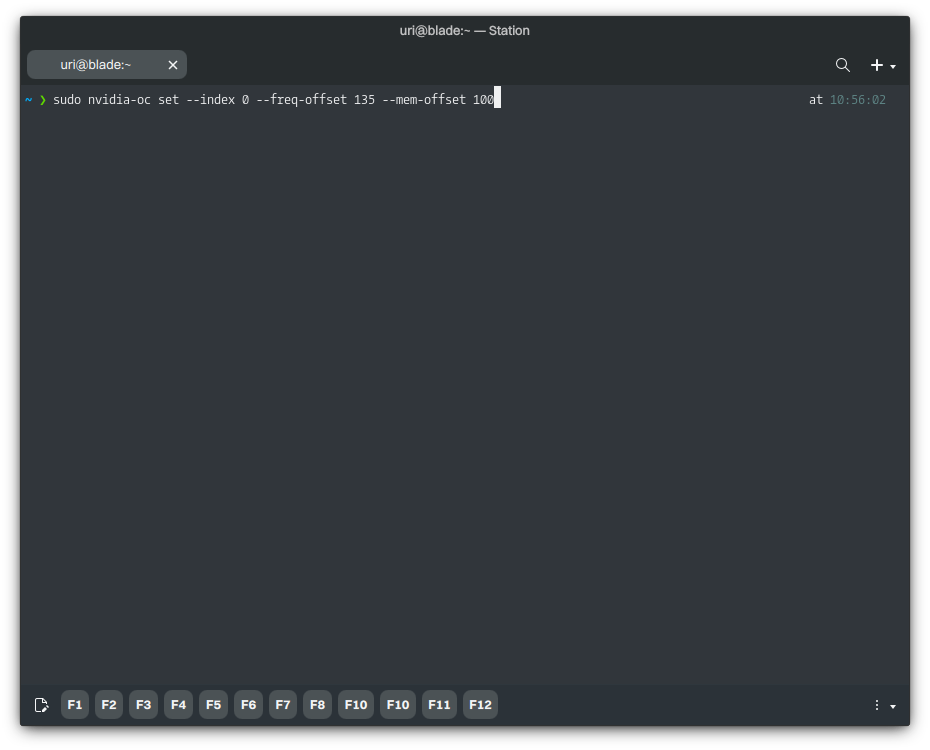
NVIDIA_OC is a simple Rust CLI tool for overclocking NVIDIA GPUs on X11 and Wayland.
LACT lets you control your AMD, Nvidia, or Intel GPU on Linux.
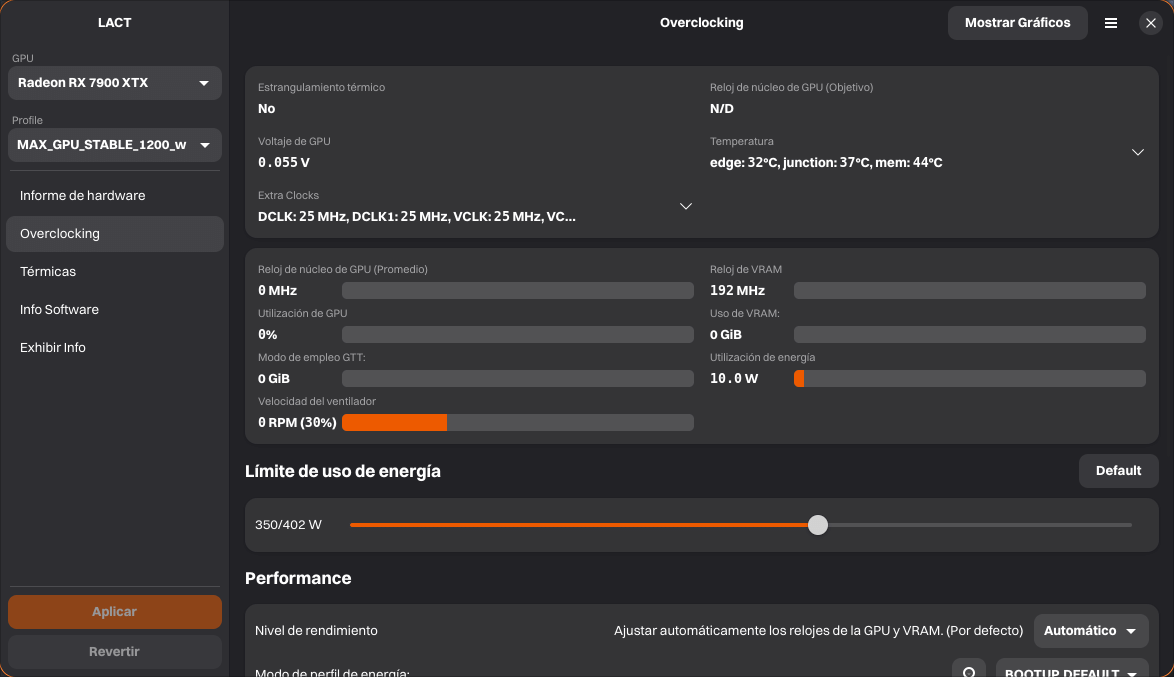
LACT (Flatpak).
Disclaimer: We do not develop NVIDIA_OC or CoreCtrl. Please create an issue in their respective bug tracker to report problems with this software.
Visual Enhancement Utilities
vkBasalt is a Vulkan post-processing layer that enhances game graphics.
Currently, the built-in effects are:
- Contrast Adaptive Sharpening
- Denoised Luma Sharpening
- Fast Approximate Anti-Aliasing
- Enhanced Subpixel Morphological Anti-Aliasing
- 3D color LookUp Table
It is also possible to use Reshade FX shaders.
Using vkBasalt in Steam (Flatpak)
- For each game, right-click the game title, then click “Properties,” in the “General,” scroll down to “Launch Options,” and add the following options to enable MangoHud and GameMode; these parameters are all on a single line.
- Basic vkBasalt parameters.
ENABLE_VKBASALT=1 [Other parameters...] %command%
Using vkBasalt in Heroic Games Launcher and Bottles (Flatpak)
- Enable vkBasalt in Bottles:
- Check the “Post-processing Effects” toggle in the settings for an individual bottle.
- Enable vkBasalt in Heroic Games Launcher:
- Add the following environment variable in the game settings menu for each game.
-
- Variable name:
ENABLE_VKBASALT - Value:
1
- Variable name:
-
- Add the following environment variable in the game settings menu for each game.
Using Resolution Scaling Technologies in Nitrux
Recent game titles support hardware-based scaling technologies such as AMD FidelityFX™ Super Resolution, NVIDIA Deep Learning Super Sampling, and Intel® Xe Super Sampling (XeSS). Most games have in-game menu settings to toggle these features; however, if they don’t, you can use some of these technologies via environment variables available in compatibility layers like Proton-GE. Other game titles use internal scaling methods, e.g., resolution-scaling sliders, that depend primarily on the game engine and aren’t comparable to these solutions.
Download Proton-GE and refer to the previous tutorial for the steps. Then, depending on the platform, add the following environment variables.
For AMD FidelityFX™ Super Resolution:
- To enable FSR 1.0, use the following environment variables:
WINE_FULLSCREEN_FSR=1 WINE_FULLSCREEN_FSR_STRENGTH=1 WINE_FULLSCREEN_FSR_MODE=quality- 🔰 Information: Accepted values for FSR_MODE are ultra, quality, balanced, and performance; accepted values for FSR_STRENGTH range from 0-5, where the higher value means minimum sharpening but more performance. To use FSR, users must launch games in full-screen. Users can use FSR with non-AMD graphics cards. After enabling FSR, set the in-game resolution to lower than the desktop resolution.
- Game titles provide FSR 2.0+ and FSR 3.0 as built-in features.
For NVIDIA Deep Learning Super Sampling:
- DXVK-NVAPI is on by default in Proton 9.0 on a per-game basis. Non-NVIDIA graphics cards can use DXVK-NVAPI. However, it offers little value.
- For games where it isn’t enabled, add the following environment variable,
PROTON_FORCE_NVAPI=1
For Intel® Xe Super Sampling (XeSS):
- Game titles must provide XeSS support.
Peripheral Management
Razer Peripherals/Devices
Since Nitrux 3.4.1, OpenRazer, the driver used by applications such as RazerGenie, has been included by default. OpenRazer is “a collection of Linux drivers for Razer devices—providing kernel drivers, DBus services, and Python bindings to interact with the DBus interface.”
- Polychromatic is an open-source RGB lighting management front-end application to customize OpenRazer peripherals on GNU/Linux.
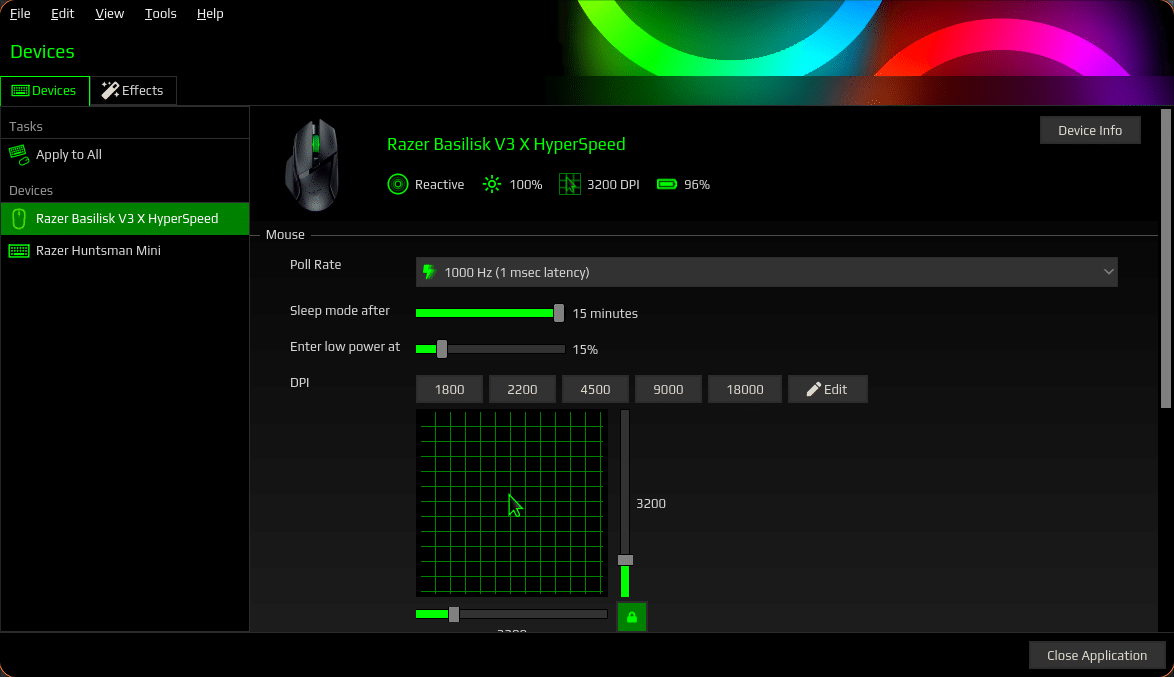
Polychromatic (Flatpak).
Xbox Accessories
Since Nitrux 3.5.0, we have included the xone drivers for Xbox One and Xbox One X|S accessories, which include support for wireless controllers. Previously, only wired controllers worked because we relied on the kernel HID driver (xpad), which also supports Xbox 360 controllers.
- xone is a Linux kernel driver for Xbox One and Xbox Series X|S accessories. It is a modern replacement for the xpad driver and aims to be compatible with Microsoft’s Game Input Protocol (GIP).
- 🔰 Information: Since Nitrux 3.6.0, we include the necessary firmware files for one by default, and usage requires no additional steps for this driver.
- xpad, the Xbox controller driver included in the kernel, doesn’t fully support newer controllers (button mappings are incorrect, and LEDs never sync).
- ⚠️ Important: This driver is necessary to use Xbox 360 controllers. However, it’s blacklisted by default because it can conflict with xone. To revert this, run the following commands.
Disclaimer: We do not develop OpenRazer, the xpadneo, or xone drivers. Please create an issue in their respective bug tracker to report problems with this software.
Support for Additional Devices
Additionally, thanks to Fabian Bornschein’s work, Nitrux supports the following controllers using udev rules.
8Bitdo (2dc8)
- 8Bitdo F30 P1
- 8Bitdo F30 P2
- 8Bitdo N30
- 8Bitdo SF30
- 8Bitdo SN30
- 8Bitdo F30 Pro
- 8Bitdo N30 Pro
- 8Bitdo SF30 Pro
- 8Bitdo SN30 Pro
- 8BitDo SN30 Pro+; Bluetooth; USB
- 8Bitdo F30 Arcade
- 8Bitdo N30 Arcade
- 8Bitdo ZERO
- 8Bitdo Retro-Bit xRB8-64
- 8BitDo Pro 2; Bluetooth; USB (2dc8:6003)
- 8BitDo Pro 2 Wired; USB (2dc8:3106), (2dc8:3010) (Setup Instructions)
- 8BitDo Ultimate Wired Controller for Xbox; USB (2dc8:2003)
Alpha Imaging Technology Corp. (114d)
- VR Set (114d:8a12)
ASTRO Gaming (9886)
- ASTRO Gaming C40 Controller; USB (9886:0025)
Betop (11c0)
- Betop PS4 Fun Controller (11c0:4001)
Hori (0f0d)
- Hori RAP4 (0f0d:008a)
- Hori HORIPAD 4 FPS (0f0d:0055)
- Hori HORIPAD 4 FPS Plus (0f0d:0066)
- Hori HORIPAD S; USB (0f0d:00c1)
- Hori Nintendo Switch HORIPAD Wired Controller; USB (0f0d:00c1)
- Hori Pokkén Tournament DX Pro Pad for Nintendo Switch; USB (0f0d:0092)
HTC (0bb4)
- Unknown (0bb4:2c87)
- Unknown (0bb4:0306)
- Unknown (0bb4:0309)
- Unknown (0bb4:030a)
- Unknown (0bb4:030b)
- Unknown (0bb4:030c)
- Unknown (0bb4:030e)
- HTC VIVE Cosmos; USB (0bb4:030e)(057e:0315)(057e:0323)
Logitech (046d)
- Logitech F310 Gamepad; USB (046d:c216)
- Logitech F710 Wireless Gamepad; USB (046d:c21f) #EXPERIMENTAL
Mad Catz (0738)
- Mad Catz Street Fighter V Arcade FightPad PRO (0738:8250)
- Mad Catz Street Fighter V Arcade FightStick TE S+ (0738:8384)
Nacon (146b)
- Nacon PS4 Revolution Pro Controller (146b:0d01)
Nintendo (057e)
- Nintendo Switch Pro Controller; Bluetooth; USB (057e:2009)
- Nintendo GameCube Controller / Adapter; USB (057e:0337)
- Nintendo Switch Joy-Con Charging Grip (057e:200e)
- Nintendo Switch Joy-Con (L); Bluetooth (057e:2006)
- Nintendo Switch Joy-Con (R); Bluetooth (057e:2007)
NVIDIA (0955)
- NVIDIA Shield Portable (2013 – NVIDIA_Controller_v01.01 – In-Home Streaming only) (0955:7203)
- NVIDIA Shield Controller (2017 – NVIDIA_Controller_v01.04); Bluetooth (0955:7214)
- NVIDIA Shield Controller (2015 – NVIDIA_Controller_v01.03); USB (0955:7210)
Performance Designed Products LLC [PDP] (0e6f)
- PDP Afterglow Deluxe+ Wired Controller; USB (0e6f:0188)
- PDP Nintendo Switch Faceoff Wired Pro Controller; USB (0e6f:0180)
- PDP Wired Fight Pad Pro for Nintendo Switch; USB (0e6f:0185)
Personal Communication Systems, Inc. (0810)
- Personal Communication Systems, Inc. Twin USB Gamepad; USB (0810:e301)
Pid.Codes (1209)
- EdgeTX, OpenTX Generic [radio controller] Joystick; USB (1209:4f54)
PowerA (20d6)
- PowerA Wired Controller for Nintendo Switch; USB (20d6:a711)
- PowerA Wireless Controller for Nintendo Switch; Bluetooth (NA)
- PowerA Zelda Wired Controller for Nintendo Switch; USB (20d6:a713)
Razer (1532)
- Razer Raiju PS4 Controller (1532:1000)
- Razer Panthera Arcade Stick (1532:0401)
- Razer Raion PS4 Fightpad (1532:1100)
Sony (054c)
- Sony PlayStation Strikepack; USB (054c:05c5)
- Sony PlayStation DualShock 3; Bluetooth; USB + Motion Sensors (054c:0268)
- Sony PlayStation DualShock 4; Bluetooth; USB (054c:05c4)
- Sony PlayStation DualShock 4 Slim; Bluetooth; USB (054c:09cc)
- Sony PlayStation DualShock 4 Wireless Adapter; USB (054c:0ba0)
- Sony DualSense Wireless-Controller; Bluetooth; USB (054c:0ce6)
- Sony DualSense Edge Wireless-Controller; Bluetooth; USB (054c:0df2)
- PlayStation VR (054c:09af)
Valve (28de)
- Valve USB devices (28de:*)
- Valve Steam Controller (28de:*)
- Valve HID devices; Bluetooth; USB (28de:*)
- Unknown-VR (28de:1043)
- Unknown-VR (28de:1142)
- Unknown-VR (28de:2000)
- Unknown-VR (28de:2010)
- Unknown-VR (28de:2011)
- Unknown-VR (28de:2012)
- Unknown-VR (28de:2021)
- Unknown-VR (28de:2022)
- Unknown-VR (28de:2050)
- Unknown-VR (28de:2101)
- Unknown-VR (28de:2102)
- Unknown-VR (28de:2150)
- Unknown-VR (28de:2300)
- Unknown-VR (28de:2301)
Zeroplus Technology Corporation (0c12)
- Armor PS4 Armor 3 Pad; USB (0c12:0e10)
- EMiO PS4 Elite Controller; USB (0c12:1cf6)
- Hit Box Arcade HIT BOX PS4/PC version; USB (0c12:0ef6)
- Nyko Xbox Controller; USB (0c12:8801)
- Unknown-Brand Xbox Controller; USB (0c12:8802)
- Unknown-Brand Xbox Controller; USB (0c12:8810)
Using VRR (Variable Refresh Rate) in Nitrux
Variable Refresh Rate (VRR) is a display technology that lets a monitor or TV dynamically adjust its refresh rate to match the frame rate a GPU (Graphics Processing Unit) outputs. This real-time video delivers smoother gameplay and visuals, especially in gaming, where frame rates can fluctuate with scene complexity or GPU workload.
VRR support depends on the monitor, GPU, and cable.
- 🔰 Information: As discussed in this issue at the AMDGPU bug tracker, adaptive sync may not work correctly unless VSync is active within the in-game settings and the game runs in full-screen mode. Additionally, changing the power profile to 3D_fullscreen for AMD GPUs prevents further performance dips; otherwise, the window manager may display the output at half the actual framerate (e.g., 60 FPS) while the game runs at 120 FPS.
- 🔰 Information: The monitor has to use DisplayPort. Some displays that implement (part of) the HDMI 2.1 specification also support VRR over HDMI.
- 🔰 Information: Although tearing is much less noticeable at higher refresh rates, FreeSync monitors often have a limited range for their VRR of 90Hz, which can be much lower than their max refresh rate.
Cloud Gaming
Cloud gaming, also known as game streaming or gaming as a service, lets you play video games with processing and rendering done on remote servers in the cloud rather than on a local device (such as a console or PC). Players access the games online, streaming the content to their devices. Below are two of the most well-known services.
- 🔰 Information: Depending on the service, there might be a “free” option, meaning no cost. However, access to the best streaming options costs money.
NVIDIA GeForce Now
GeForce Now is NVIDIA’s cloud gaming service that streams games from its servers to your device, so you can play AAA games on hardware that typically can’t run them. To use this service in Nitrux, you just need a web browser. For organization, we recommend using the Heroic Games Launcher, which users can install from the applications menu.
- Open Heroic Games Launcher→Library→ Add Game.
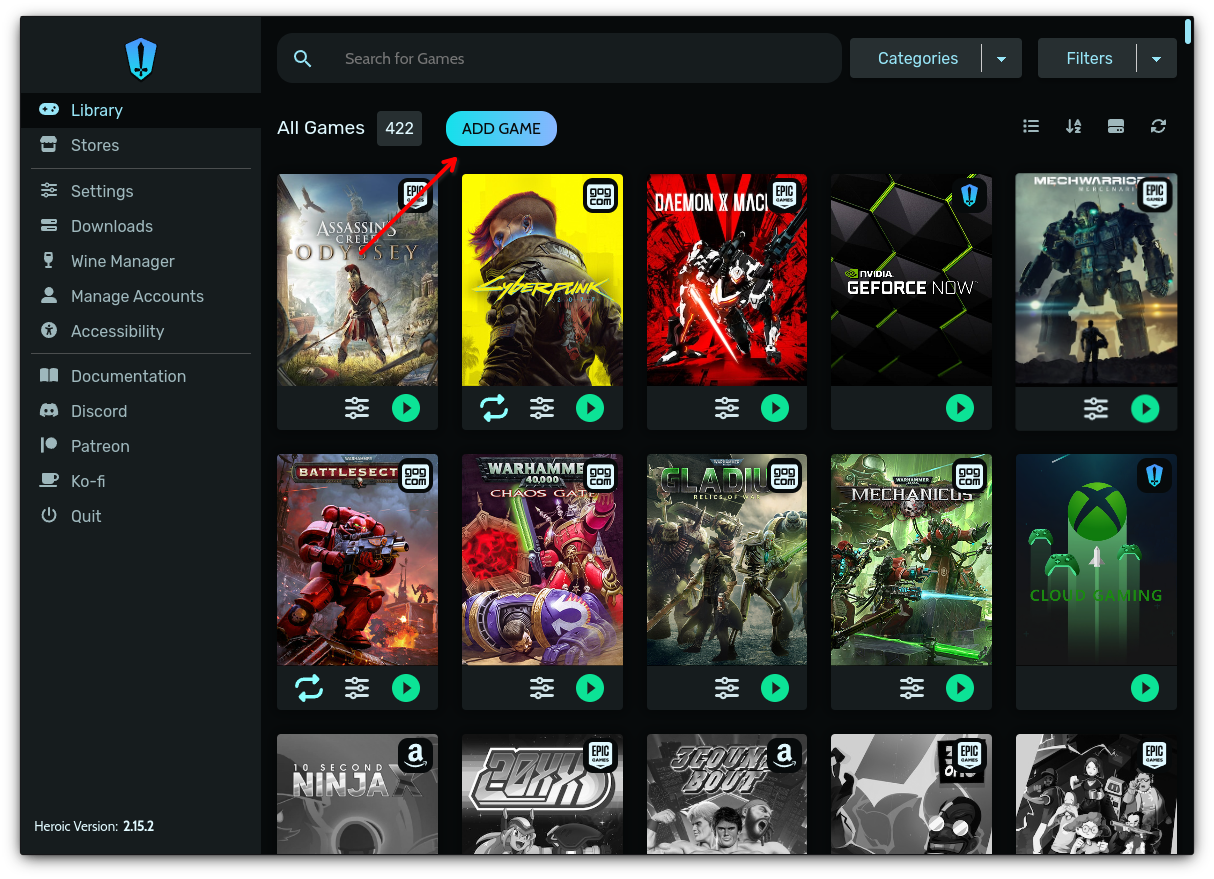
Heroic Games Launcher window; image for illustrative purposes.
- Enter the Title, then enter the browser URL: https://play.geforcenow.com/, and click Finish.
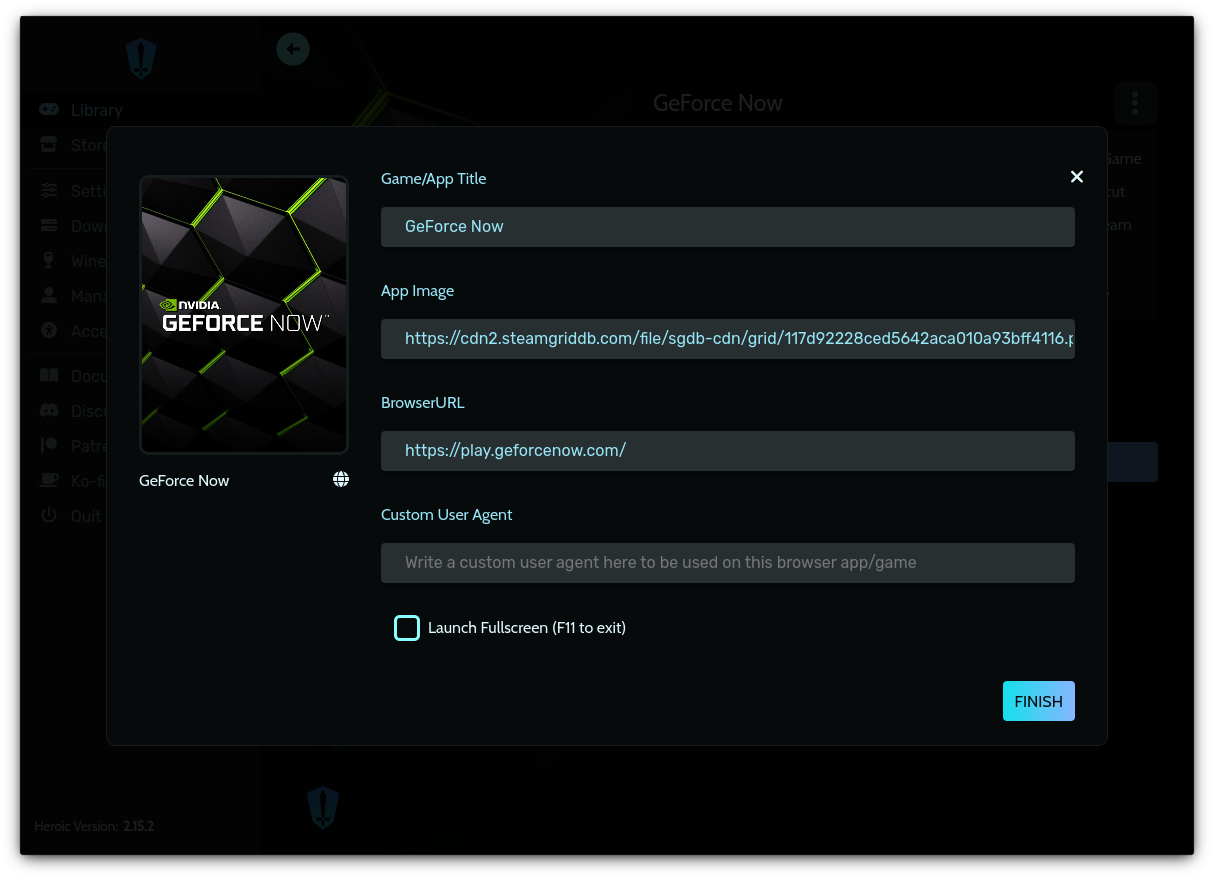
Add GeForce Now to Heroic Games Launcher.
Xbox Cloud Gaming
Xbox Cloud Gaming lets you play and access various Xbox Game Pass games on different devices. The feature streams games from the cloud instead of downloading them, so you can pick them up and play almost instantly, almost anywhere, as long as you have a stable internet connection. To use this service in Nitrux, you only need a web browser. For organization, we recommend using the Heroic Games Launcher, which users can install from the applications menu.
- Open Heroic Games Launcher→ Library→Add Game.
- Enter the Title, then enter the following address in the Browser URL: https://www.xbox.com/play, and click Finish.
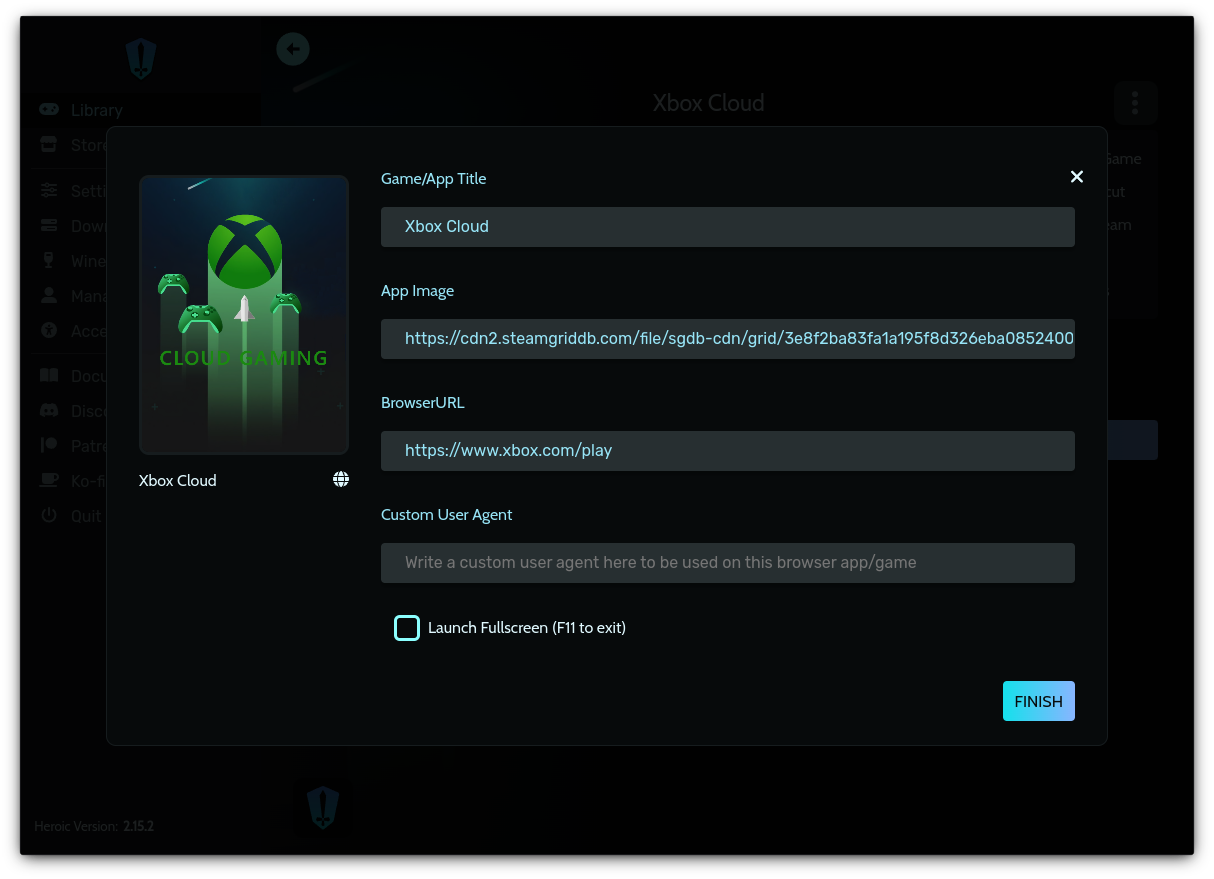
Add Xbox Cloud Gaming to Heroic Games Launcher.
That’s it; this concludes today’s tutorial.