

In today’s tutorial, we’ll check all the filesystem, security, privacy, and anonymization features in Nitrux.
Difficulty: ★☆☆☆☆
📜 Table of Contents
Manage WireGuard VPN Connections
Nitrux supports WireGuard for high-performance encrypted tunnels. Users can either use Wirecloak (GUI) or wg-quick (CLI) to manage VPN tunnels.
- ⚠️ Important: Using Wi-Fi & Networking to import the VPN profile will not work. Wi-Fi & Networking (
plasma-nm) doesn’t fully implement the functionality necessary to add a WireGuard connection correctly. It does support displaying the connection in the UI; this isn’t a Nitrux bug, it’s a bug in plasma-nm.
Wirecloak
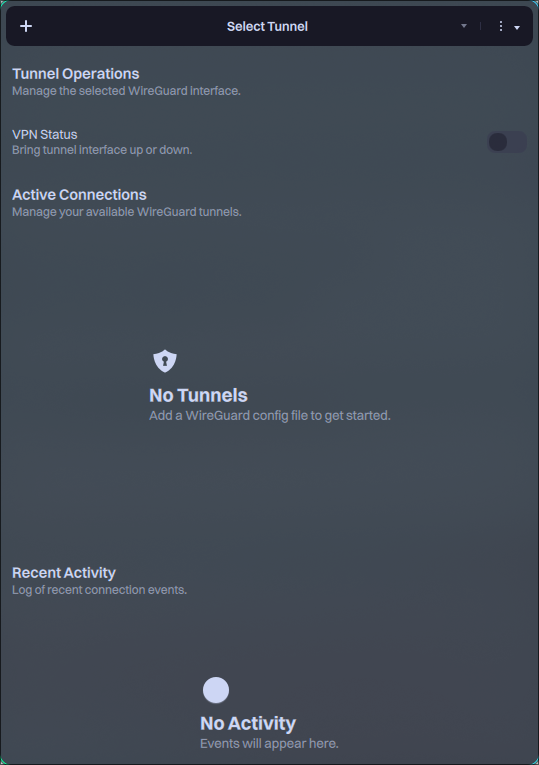
Wirecloak is a modern, native WireGuard VPN client for Nitrux, built with MauiKit. It provides a user-friendly interface for managing VPN tunnels while securely integrating with the system’s immutable root filesystem. To add a WireGuard VPN file to Wirecloak, do the following.
- Click the add (+) button.
- Browse for the file and click Open.
- Enter your user account password when requested.
Once the tunnel is available in Wirecloak, click the toggle to enable or disable it, and use the dropdown menu to switch tunnels.
Importing a WireGuard tunnel with wg-quick
Using the terminal is also a valid method to import a WireGuard VPN tunnel.
To import a WireGuard connection properly using the VPN provider’s configuration file, do the following.
- From your provider’s dashboard, download the WireGuard configuration file.
- 🔰 Information: The connection name (tunnel) will be the name of the file you’ve downloaded.
- Remove or comment out the DNS directive using this command:
sed -i 's/^[[:space:]]*DNS[[:space:]]*=/# &/' <vpn-provider-configuration-file>.conf - Copy, move (or symlink) the profile into
/etc/wireguard/.- ⚠️ Important: The commands below create, copy, edit, or move files in the root directory; see System Management → NX Overlayroot → Usage.
sudo overlayroot-chroot

mount -t devtmpfs dev /dev

mount -t auto $(findfs LABEL=NX_HOME) /home

cp /home/$USER/<path-to-config-file> /etc/wireguard/

sync

umount /home /dev

exit
Since we’re adding the configuration file to the lowerdir (i.e., the lower directory), we need to reboot to load the changes into the overlay (i.e., the upper directory).
- Bring the tunnel down if it is already up.
sudo wg-quick down <connection-name> 2>/dev/null || true
- Bring the tunnel up.
sudo wg-quick up <connection-name>
- Verify WireGuard state and handshake.
- You should see:
latest handshakewith a recent timestamp- ⚠️ Important: If empty, the tunnel is not established.
- The
transfercounters increase after traffic flows.
- You should see:
sudo wg show <connection-name>
- Verify routing and external IP.
- Expected:
- Route via tunnel.
- External IP matches the VPN provider.
- Expected:
ip route get 1.1.1.1

curl -4 ifconfig.me
- Bring the tunnel down when finished.
- ⚠️ Important: Note that disconnecting from the tunnel may leave some web browsers in a stale state. Restarting the NetworkManager service is not enough, and a full reboot is required.
sudo wg-quick down
Importing an OpenVPN connection in NetworkManager
Since Nitrux 2.7.0, the distribution includes the OpenVPN plugin for NetworkManager. To import an OpenVPN connection using a file, i.e., example-vpn.ovpn, do the following.
- Open System Settings→Wi-Fi & Networking.
- Click the add (+) button, then scroll down to “Import VPN connection…”.
- Click the button “Create” and select your .ovpn file.
- Select the new VPN connection and ensure that in the connection type “Password with certificates (TLS)” is selected, then ensure that “Save password only for this user (cipher)” is selected for the secret key and VPN passwords.
- Activate the connection from the Connection settings (right-click → connect) or use the network icon in the system tray.
- ⚠️ Important: If you use some public VPNs to protect your privacy, you might get a public IP address or at least be exposed to external connections. Once a public VPN is enabled, the firewalls in front of your computer no longer protect you. Nitru uses UFW by default and blocks incoming connections to alleviate this issue.
- ⚠️ Important: Activating the connection immediately will cause a second dialog window to appear in the app, asking for the VPN password again after entering both passwords. To avoid this, log out and log in or reboot after adding the VPN connection.
- A dialog window will appear asking for two passwords: the VPN password and the secret key. Enter the VPN password and the secret key password.
- 🔰 Information: Enter a password you’re familiar with. While it’s possible to use the user account password, we strongly recommend against it.
- (Optional) Pair the VPN with a primary connection so it connects automatically. Go to System Settings→Connections→Your Connection→General configuration, check the box “Connect automatically to VPN,” select the VPN, and click “Apply.”
Please note the following when importing an OpenVPN connection.
- ⚠️ Important: IPv6 support depends on the VPN provider; this is not a bug in Nitrux. If the provider doesn’t support IPv6 tunneling, turn off IPv6 on the primary connection. Go to System Settings→Connections→Your Connection→IPv6, select “Ignored” as the method, and click “Apply.”
Using Cinderward for Firewall Management
Cinderward is a simple utility built with MauiKit that provides an intuitive interface for managing day-to-day firewall rules without the complexity of firewalld’s command-line tooling.
Cinderward intentionally does not expose advanced or dangerous firewalld features. Its design goal is to remain approachable and safe for everyday users while still being powerful enough for typical workstation and laptop use cases.
Here are Cinderward’s main features:
- Zone-based control:
- View and edit firewalld rules per zone
- Add or remove services, ports (TCP/UDP), and port forwarding rules
- One-click security toggles:
- Panic Mode (lockdown)
- Masquerading (NAT)
- Logging of denied packets
- ICMP reconnaissance blocking
- Always in sync:
- Real-time synchronization with firewalld over D-Bus
- Changes are applied immediately to the active firewall
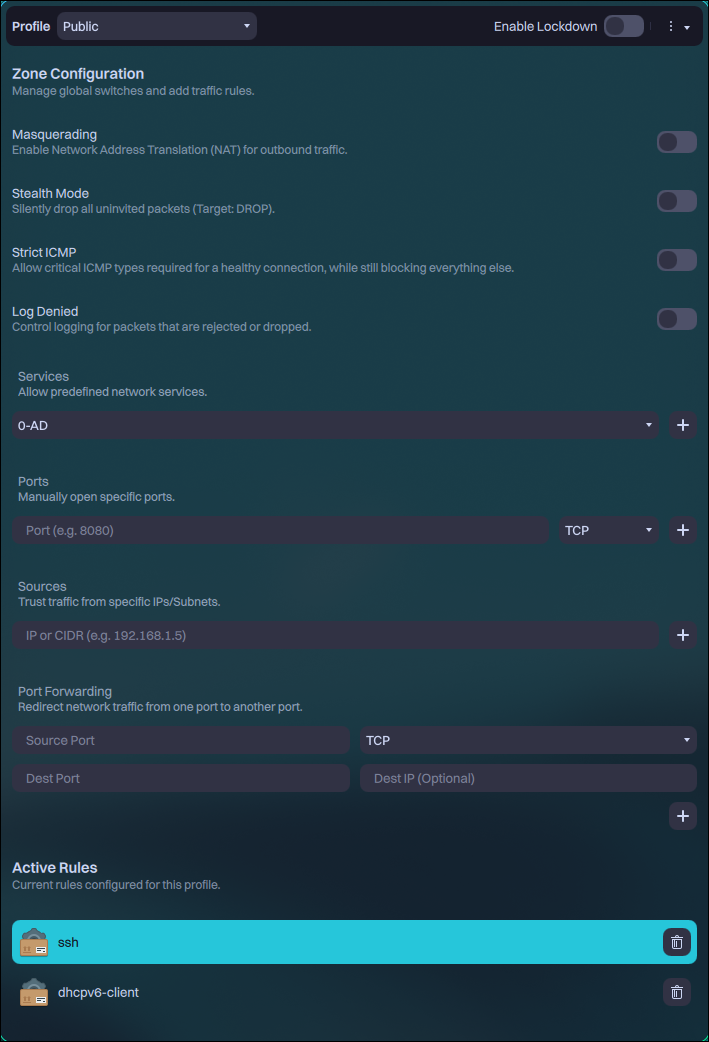
Unlike other popular firewall implementations, Firewalld works with zones. Users can assign connections to different zones, and each zone can have different rules. To learn more about Firewalld, check their documentation.
DNS Encryption in Nitrux
Nitrux uses dnscrypt-proxy by default with NetworkManager, which encrypts DNS queries between your machine and the DNS resolver.
Because of how NetworkManager works, users must edit their connections to use this feature by following these steps.
- Open System Settings→Wi-Fi & Networking.
- Select a network connection, preferably the active connection, to test immediately.
- Go to the tab IPv4 and select “Method: Automatic (addresses only)”.
- In DNS servers, enter:
127.0.0.1
- In DNS servers, enter:
- Go to the tab IPv6 and select “Method: Automatic (addresses only)”.
- In DNS servers, enter:
::1
- In DNS servers, enter:
- Click the “Apply” button, then disconnect from the network. Additionally, close any applications that are actively using the network, such as web browsers.
- Connect to the network again, and open any application that requires an Internet connection. DNS queries will be encrypted now.
- 🔰 Information: To verify the functionality, visit a DNS leak test website, such as https://www.dnsleaktest.com/, https://surfshark.com/es/dns-leak-test, or https://browserleaks.com/dns. The results should show only the DNS resolver (Nitrux uses AdGuard).
Please be aware that DNS query encryption does not hide IP addresses. To do that, use a VPN.
Native File Encryption in F2FS
F2FS provides native encryption via fscrypt or f2fscrypt.
- ⚠️ Important: Users should use fscrypt over f2fscrypt; while both can manage F2FS native encryption features, f2fscrypt is missing many essential features and is no longer actively developed.
If using fscrypt (recommended), do the following.
- Run fscrypt to create its configuration file and work directory.
sudo fscrypt setup
- Then, run the following command.
- Where
$MOUNTPOINTis the mount point, e.g.,/home.
- Where
sudo fscrypt setup $MOUNTPOINT
- The command creates the
$MOUNTPOINT/.fscryptdirectory to store fscrypt policies and protectors.- ⚠️ Important: Never delete the hidden directory; otherwise, users will lose all access to encrypted files.
If using f2fscrypt (available, not recommended), do the following.
-
- First, create the key in the keyring using a simple salt (or generate a random salt).
f2fscrypt add_key -S 0x1234
Enter passphrase (echo disabled):
Added key with descriptor [28e21cc0c4393da1]
- Then use it to set the policy for encrypting the directory.
f2fscrypt set_policy 28e21cc0c4393da1 /encrypted/dir
Key with descriptor [28e21cc0c4393da1] applied to /encrypted/dir.
- After each reboot, use the same command to set the key used to decrypt the directory and its child directories.
f2fscrypt get_policy /encrypted/dir/
/encrypted/dir/: 28e21cc0c4393da1
That’s it; this concludes today’s tutorial.