

In general, Linux gaming used to be limited to a few FOSS games, but that is no longer the case; it’s grown steadily over the past few years. With major companies like Valve providing Steam for Linux and Proton, DXVK in development, Wine developers continuing their work, and Indie game developers creating games with Linux support out of the box, Linux gaming keeps expanding.
This post will be pt. 1.
Difficulty: ★☆☆☆☆
📜 Table of Contents
Native
Native games are designed specifically for Linux and don’t require emulation or middleware.
Not all games native to Linux are FOSS (free, as in freedom, open-source software) or free (as in gratis).
That said, how can users get these native Linux games?
AppImageHub.com
The first source is AppImageHub.com, which offers games (among other applications) packaged as AppImage.
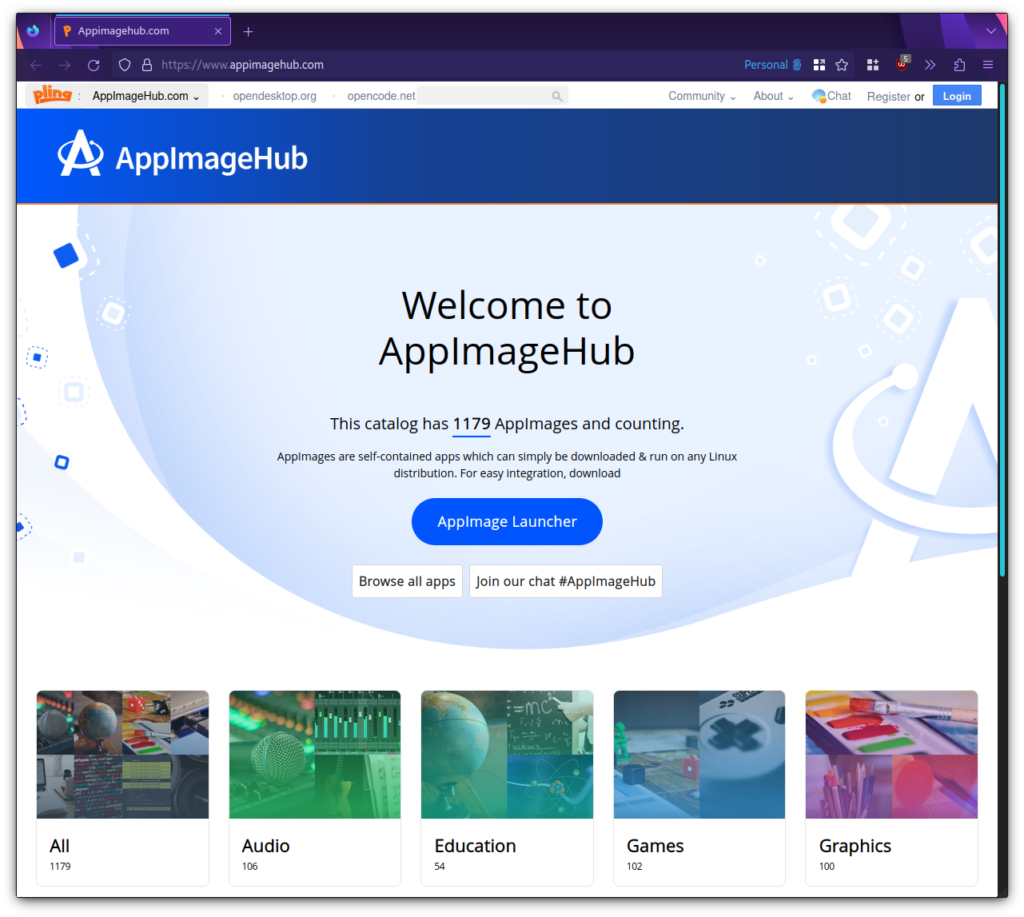
AppImageHub.com offers users a vast catalog of AppImage applications.
To explore the games listed at AppImageHub.com.
PortableLinuxGames
Likewise, PortableLinuxGames offers game packages such as AppImage. “PortableLinuxGames packs and distributes great Linux games as portable, self-contained packages that will (or should) run on any Linux system. It uses the AppImage package format and some script magic.”
- 🔰 Information: We recommend downloading the files from PortableLinuxGames
~/Applicationsfor organization.
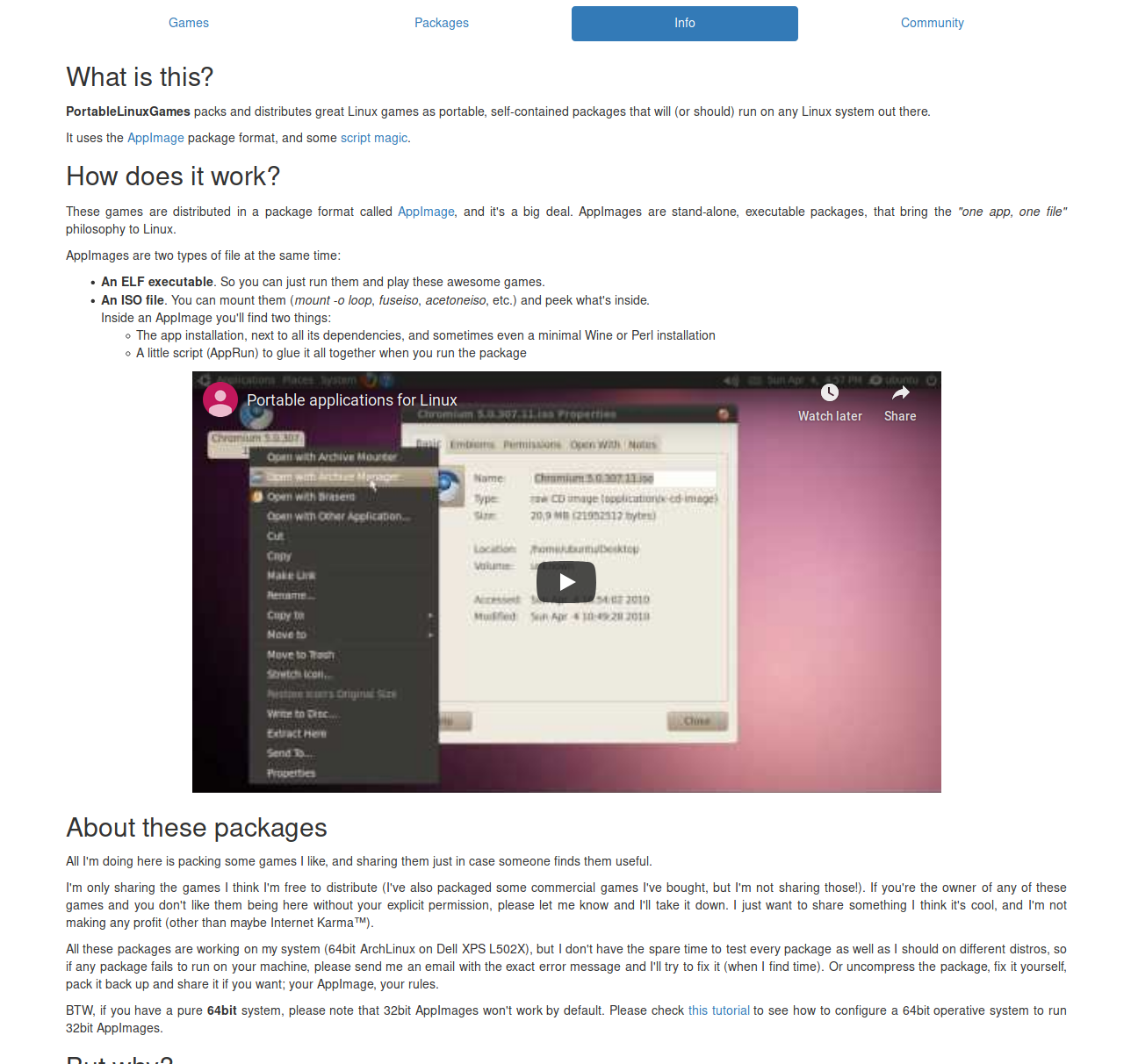
PortableLinuxGames packs and distributes great Linux games as portable, self-contained packages (AppImage).
Native and Non-Native
Non-native games don’t specifically target Linux and require middleware to run.
Steam
Steam is the most popular source for non-native games on Linux. Steam is a top-rated digital game store that offers Linux games (including free games). Steam has both ported and native Linux games and offers Steam Play for selected Windows games to run on Linux; see Middleware used to run non-native games on Linux.
- The Steam client doesn’t use the AppImage format; it stores the game in the user’s home folder rather than the root directory.
- 🔰 Information: We include a shortcut to install the Steam client for Linux in the applications menu.
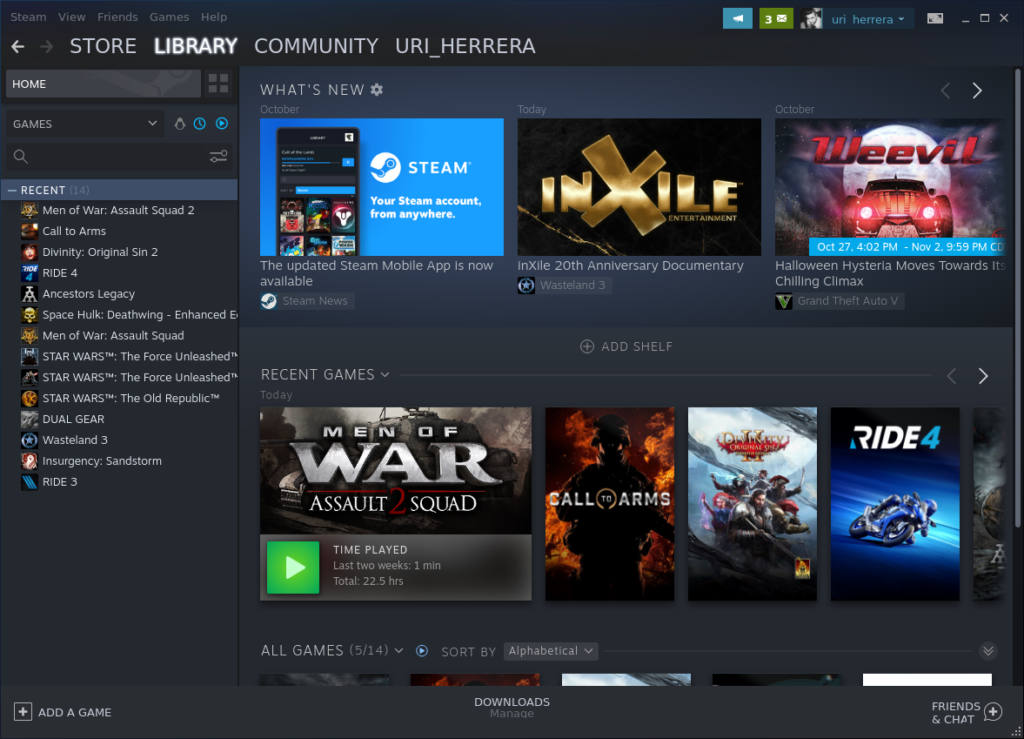
Steam (Flatpak) client for Linux.
Heroic Games Launcher
Heroic Games Launcher is a popular option for accessing other stores, such as Epic Store, GOG, and Amazon. Heroic (for short) describes itself as “an Open Source Game Launcher for Linux, Windows and macOS.”
- HGL stores its content in the user’s home rather than the root directory.
- 🔰 Information: We include a shortcut to install Heroic Games Launcher in the applications menu.
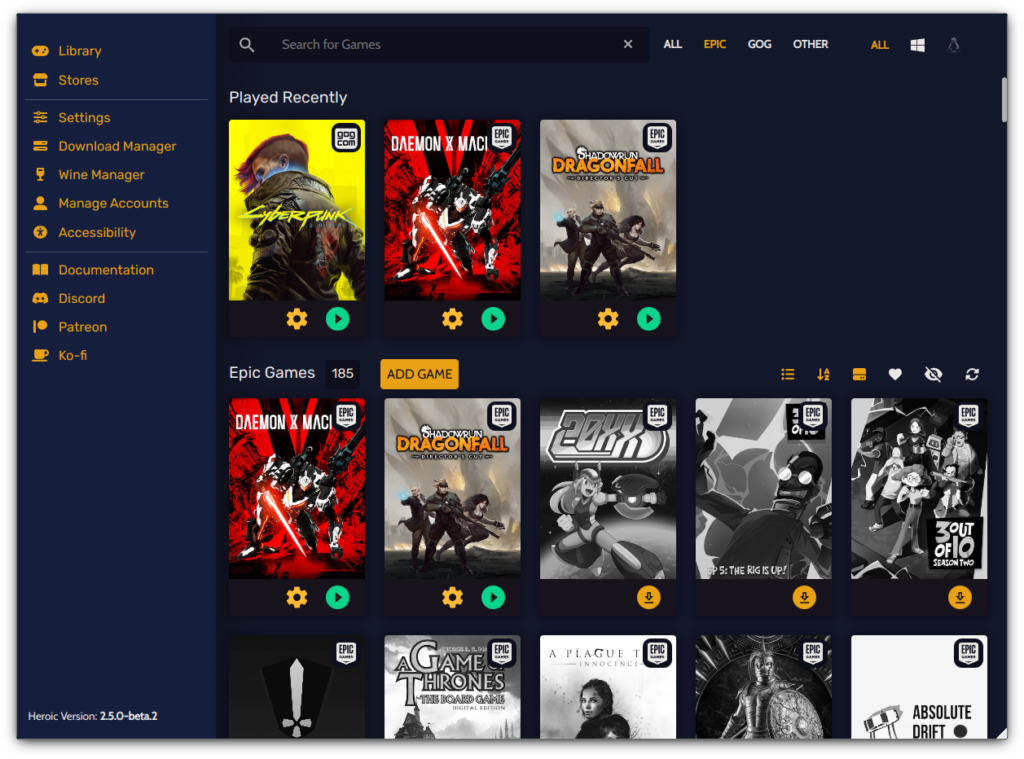
Heroic is an open-source game launcher for Linux, Windows, and macOS.
Like Steam, Heroic allows users to use multiple Proton and (vanilla) Wine versions.
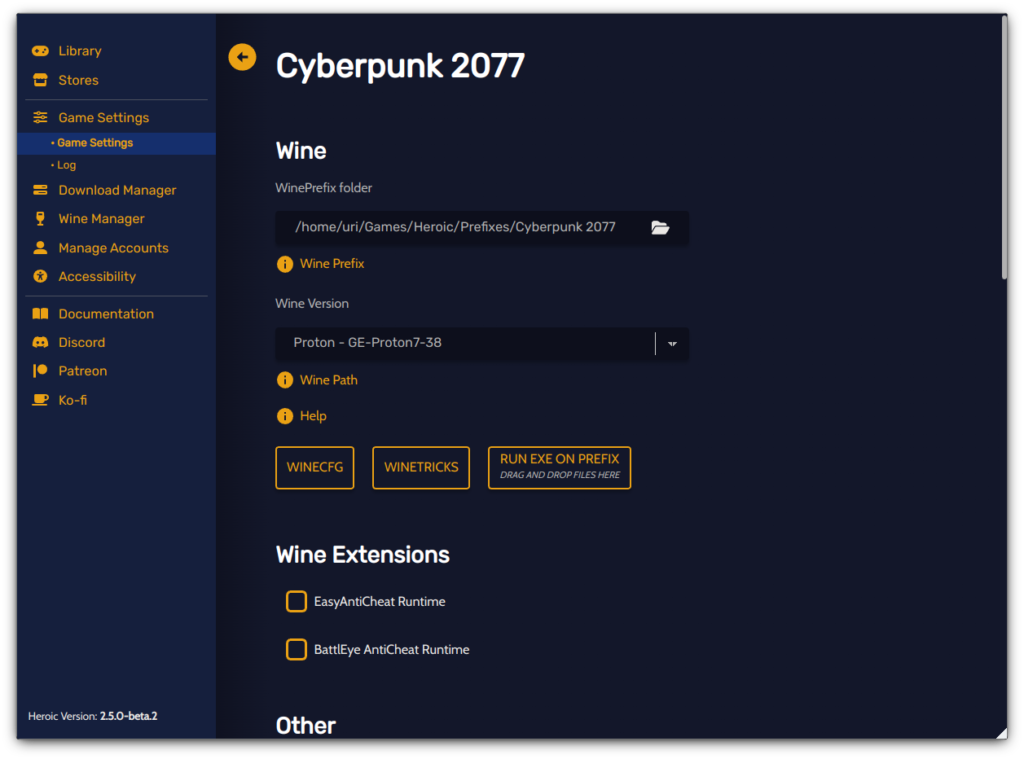
Heroic lets users choose which version of Wine or Proton to use.
Bottles
Bottles is an application that lets users run Windows software, such as Heroic Games Launcher and Steam. Unlike these applications, Bottles uses separate environments (or Bottles, hence the name), letting users set different settings for each program. Additionally, Bottles handles many components required to run software, such as .NET installers and VC redistributable packages, through its integrated dependency manager.
Bottles also has a feature called Installers, which lets users easily install many store launchers or select applications; check this link for a list.
- Bottles stores its contents in the user’s home directory rather than in the root directory.
- 🔰 Information: We include a shortcut to install Bottles in the application menu.
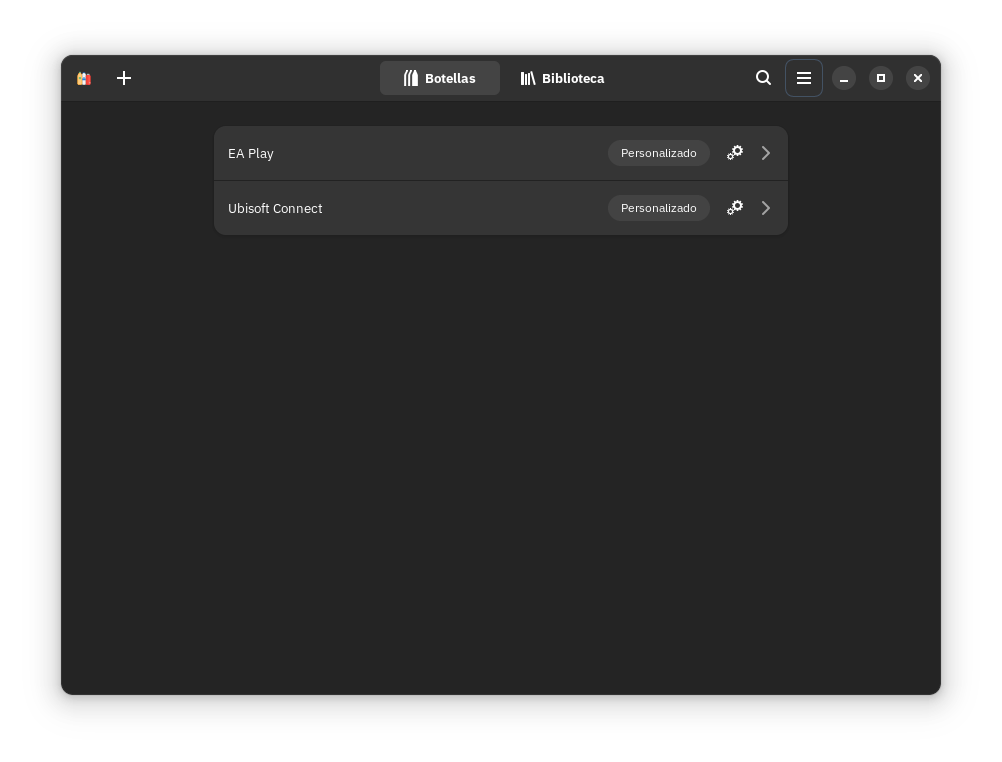
Run Windows in a Bottle.
Bottles also let you choose which versions of Proton, DXVK, and VK3D to use.
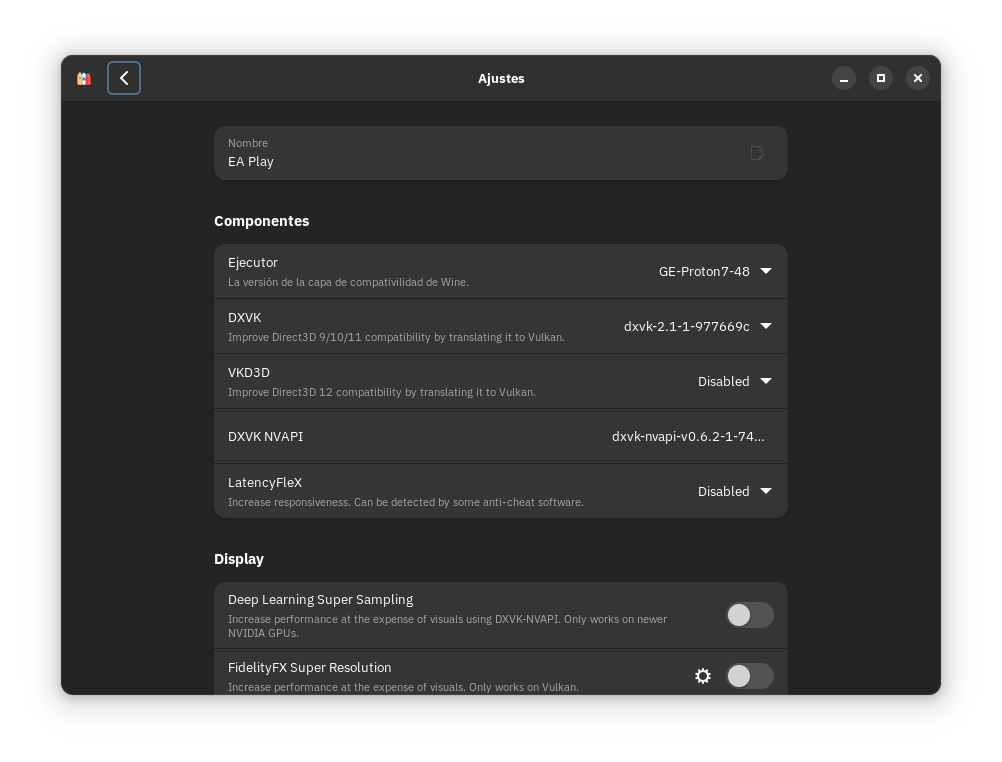
Customize your Windows environment with ease.
itch.io Store
A third source for games is itch.io. itch.io is “an open marketplace for independent digital creators focusing on independent video games. It’s a platform that enables anyone to sell the content they’ve created.”
- The itch.io client doesn’t use the AppImage format; it stores the game in the user’s home folder rather than the root directory, as a Debian package does.
- 🔰 Information: We include a shortcut to install the itch.io client for Linux in the application menu; we do not include it by default.
- Please refer to the itch.io troubleshooting guide for support.
- If users have problems launching the itch.io application after installation, do the following.
- Open the applications menu, right-click the desktop launcher, and select Edit application.
- Click the Application tab, then add the Chromium option –no-sandbox in the Arguments field.
- The itch.io Store is not an AppImage. However, it’s an Electron application, so the same arguments apply.
- 🔰 Information: What does the Chromium option “–no-sandbox” mean?
- If the desktop launcher has other arguments, remove them.
- Click Accept, then launch the application.
- The itch.io Store is not an AppImage. However, it’s an Electron application, so the same arguments apply.
- ⚠️ Important: The itch.io Store does not work correctly on a virtual machine. This is not a bug in Nitrux.
- If users have problems launching the itch.io application after installation, do the following.
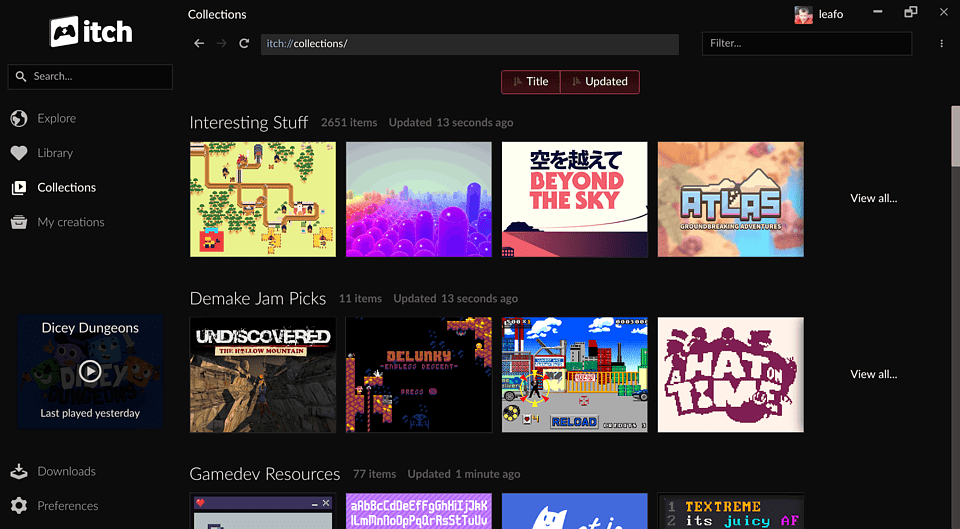
itch.io native client for Linux.
Middleware used to run non-native games on Linux
Proton/DXVK
First, let’s answer the question, “What is DXVK?“?. DXVK is a set of replacement DLLs that translate DirectX calls to Vulkan.
To run Windows games, Steam uses a version of Wine called “Proton,” which is optimized to run games that lack Linux support. Users can select from bundled Proton versions with Steam, as well as third-party customized versions.
- 🔰 Information: By default, Steam will use Proton as developed and distributed by Valve and does not support adding other flavors or releases of Proton through the GUI. To use different Proton flavors, users must manually add them to Steam.
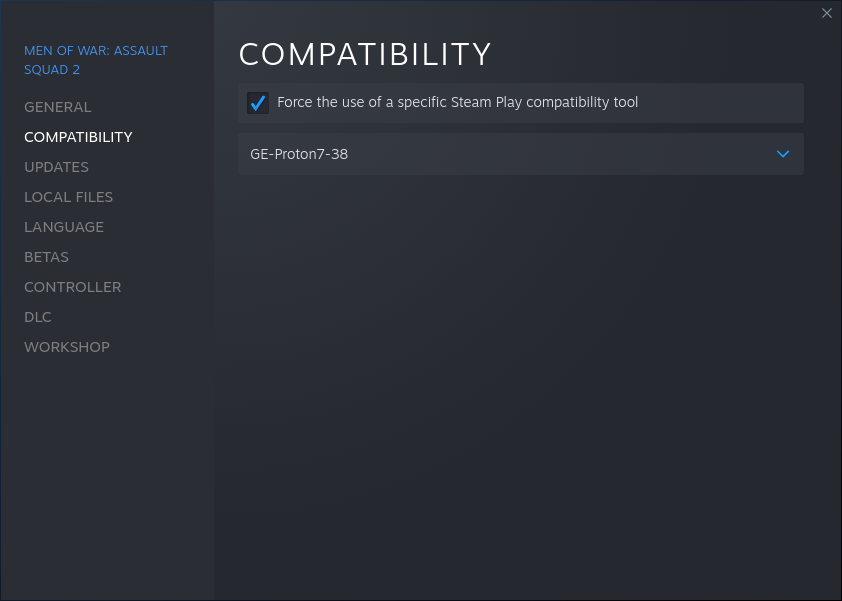
Steam lets users enable its compatibility tool, “Steam Play,” which uses Proton.
Proton (flavors)
- Proton-CachyOS is a tool for use with the Steam client and umu-launcher that builds on Proton, introducing experimental features, third-party tools, and more.
- Proton-GE is a custom flavor of Proton created by GloriousEggroll (hence the GE).
To download either flavor of Proton, install ProtonUp-Qt.
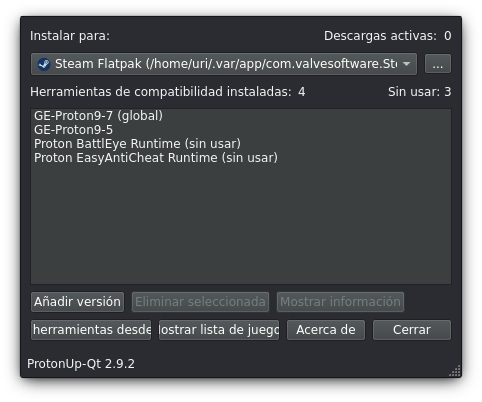
ProtonUp-Qt allows managing releases of Proton.
Disclaimer: Nitrux does not develop Proton. Please create an issue in their respective bug tracker to report problems with this software.
Emulators
Emulation is a software compatibility layer that simulates game consoles’ hardware components, instruction sets, and related APIs. In actual game consoles, emulation software can emulate CPUs, GPUs, audio hardware, and other physical components.
🔰 Information: The following list only accounts for some popular emulators available as AppImages either officially or by third parties and some Flatpak recommendations.
- Duckstation. DuckStation is a simulator/emulator of the Sony PlayStation(TM) console, focusing on playability, speed, and long-term maintainability.
- PCSX2. PCSX2 is a free PlayStation 2 emulator that lets you play PS2 games on your PC.
- RPCS3. The world’s first free and open-source PlayStation 3 emulator/debugger, written in C++ for Windows and Linux.
- RetroArch. RetroArch is an emulation frontend that allows users to play games by hooking into game-specific emulation cores. It supports over 100 emulation cores; a list of which is available here.
- Cemu. Cemu is a Wii U emulator that can run most Wii U games and homebrew.
- DeSmuME. DeSmuME is a Nintendo DS emulator.
- Dolphin. Dolphin is an emulator for two recent Nintendo video game consoles: the GameCube and the Wii.
- PPSSPP. A PSP emulator.
- Xemu. Original Xbox Emulator
Check out Pt. 2 of this tutorial series, where we will examine additional tools to improve our gaming experience.